• Skip to primary navigation
  • Skip to main content
  • Skip to primary sidebar
  • Skip to footer
logo

All Blogging Tips

Everything About Blogging

  • Home
  • Start a Blog
  • Grow Your Blog
  • About
  • Contact
  • Tools I Use

Search Results for: ai

Add Cute jQuery Popup For Facebook Like Box

By Ammar Ali 9 Comments

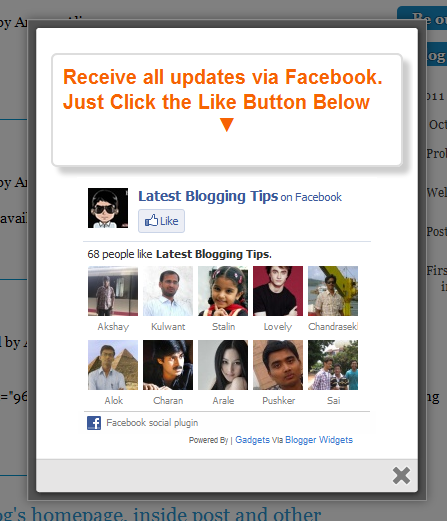
cute facebook popupAfter my recent widget Popup for Adsense. Now i decided to present some cool to you so I comes with a Cute jQuery Popup For Facebook Like Box. This is a great widget to increase likes. You may see on most sites or blogs which are using Popups to increase there subscribers, fans and followers. This Cute jQuery Popup For Facebook Like Box is a great widget for blogger. As soon as new visitors arrive your blog the popup will be showed to your visitors which can help you to increase likes and get more traffic from Facebook.In my next tutorials I will try  to make it more interactive with social media links, profiles and a complete version with everything in it which you may need.Check out demo below and than I show you How to Add Cute jQuery Popup For Facebook Like Box To Blogger or WordPress?

Live Demo


  • Add Cute jQuery Popup For Facebook Like Box To Blogger

I am discussing here steps for blogger but if you know how to deal simple HTML code then you can easily add it to your wordpress blog too.

  1. Go To Blogger > Design
  2. Click choose a gadget
  3. Select HTML/javascript widget
  4. Paste the following code inside it
  •  Add Cute jQuery Popup For Facebook Like Box To WordPress Blogs?

You can add  jQuery Facebook Like Box Popup To WordPress Blogs. Follow following steps to add this.

  1. Goto WordPress Dashboard > Appearance >Widget
  2. Drop a Text Widget to your sidebar.
  3. Now Paste above code in Text Widget.
  4. And CLick on save button. and see your blog
<style>

    /*
       ColorBox Core Style:
       The following CSS is consistent between example themes and should not be altered.
    */
    #colorbox, #cboxOverlay, #cboxWrapper{position:absolute; top:0; left:0; z-index:9999; overflow:hidden;}
    #cboxOverlay{position:fixed; width:100%; height:100%;}
    #cboxMiddleLeft, #cboxBottomLeft{clear:left;}
    #cboxContent{position:relative;}
    #cboxLoadedContent{overflow:auto;}
    #cboxTitle{margin:0;}
    #cboxLoadingOverlay, #cboxLoadingGraphic{position:absolute; top:0; left:0; width:100%;}
    #cboxPrevious, #cboxNext, #cboxClose, #cboxSlideshow{cursor:pointer;}
    .cboxPhoto{float:left; margin:auto; border:0; display:block;}
    .cboxIframe{width:100%; height:100%; display:block; border:0;}
    /*

       User Style:
       Change the following styles to modify the appearance of ColorBox.  They are
       ordered & tabbed in a way that represents the nesting of the generated HTML.
    */
    #cboxOverlay{background:#000;opacity:0.5 !important;}
    #colorbox{
            box-shadow:0 0 15px rgba(0,0,0,0.4);
           -moz-box-shadow:0 0 15px rgba(0,0,0,0.4);
            -webkit-box-shadow:0 0 15px rgba(0,0,0,0.4);
           }

    #cboxTopLeft{width:14px; height:14px; background:url(http://4.bp.blogspot.com/-_VSGGUcsUPE/TwNIXL6W2qI/AAAAAAAAFwQ/5KR8F-N3Mqk/s1600/controls.png) no-repeat 0 0;}
    #cboxTopCenter{height:14px; background:url(http://3.bp.blogspot.com/-dJQm3QEd5Iw/TxohpCter-I/AAAAAAAAF0Q/GRny7olLbv8/s400/border.png) repeat-x top left;}
         #cboxTopRight{width:14px; height:14px; background:url(http://4.bp.blogspot.com/-_VSGGUcsUPE/TwNIXL6W2qI/AAAAAAAAFwQ/5KR8F-N3Mqk/s1600/controls.png) no-repeat -36px 0;}
         #cboxBottomLeft{width:14px; height:43px; background:url(http://4.bp.blogspot.com/-_VSGGUcsUPE/TwNIXL6W2qI/AAAAAAAAFwQ/5KR8F-N3Mqk/s1600/controls.png) no-repeat 0 -32px;}
         #cboxBottomCenter{height:43px; background:url(http://3.bp.blogspot.com/-dJQm3QEd5Iw/TxohpCter-I/AAAAAAAAF0Q/GRny7olLbv8/s400/border.png) repeat-x bottom left;}
         #cboxBottomRight{width:14px; height:43px; background:url(http://4.bp.blogspot.com/-_VSGGUcsUPE/TwNIXL6W2qI/AAAAAAAAFwQ/5KR8F-N3Mqk/s1600/controls.png) no-repeat -36px -32px;}
         #cboxMiddleLeft{width:14px; background:url(http://4.bp.blogspot.com/-_VSGGUcsUPE/TwNIXL6W2qI/AAAAAAAAFwQ/5KR8F-N3Mqk/s1600/controls.png) repeat-y -175px 0;}
         #cboxMiddleRight{width:14px; background:url(http://4.bp.blogspot.com/-_VSGGUcsUPE/TwNIXL6W2qI/AAAAAAAAFwQ/5KR8F-N3Mqk/s1600/controls.png) repeat-y -211px 0;}
         #cboxContent{background:#fff; overflow:visible;}
             #cboxLoadedContent{margin-bottom:5px;}
             #cboxLoadingOverlay{background:url(http://2.bp.blogspot.com/-bMneOFi_UDo/Txohpge3Z9I/AAAAAAAAF0s/AbVgxX9pXtQ/s400/loadingbackground.png) no-repeat center center;}
             #cboxLoadingGraphic{http://3.bp.blogspot.com/-SKktU1-SCCw/TxohpRB19LI/AAAAAAAAF0Y/iwIo3LnjoE0/s400/loading.gif) no-repeat center center;}
             #cboxTitle{position:absolute; bottom:-25px; left:0; text-align:center; width:100%; font-weight:bold; color:#7C7C7C;}
             #cboxCurrent{position:absolute; bottom:-25px; left:58px; font-weight:bold; color:#7C7C7C;}
             #cboxPrevious, #cboxNext, #cboxClose, #cboxSlideshow{position:absolute; bottom:-29px; background:url(http://4.bp.blogspot.com/-_VSGGUcsUPE/TwNIXL6W2qI/AAAAAAAAFwQ/5KR8F-N3Mqk/s1600/controls.png) no-repeat 0px 0px; width:23px; height:23px; text-indent:-9999px;}
             #cboxPrevious{left:0px; background-position: -51px -25px;}
             #cboxPrevious.hover{background-position:-51px 0px;}
             #cboxNext{left:27px; background-position:-75px -25px;}
             #cboxNext.hover{background-position:-75px 0px;}
             #cboxClose{right:0; background-position:-100px -25px;}
             #cboxClose.hover{background-position:-100px 0px;}
             .cboxSlideshow_on #cboxSlideshow{background-position:-125px 0px; right:27px;}
             .cboxSlideshow_on #cboxSlideshow.hover{background-position:-150px 0px;}
             .cboxSlideshow_off #cboxSlideshow{background-position:-150px -25px; right:27px;}
             .cboxSlideshow_off #cboxSlideshow.hover{background-position:-125px 0px;}

    /*-----------------------------------------------------------------------------------*/
    /*   Facebook Likebox popup For Blogger
    /*-----------------------------------------------------------------------------------*/
    #subscribe {
        font: 12px/1.2 Arial,Helvetica,san-serif; color:#666;
    }
    #subscribe a,
    #subscribe a:hover,
    #subscribe a:visited {
        text-decoration:none;
    }
    .box-title {
       color: #F66303;
       font-size: 20px !important;
       font-weight: bold;
       margin: 10px 0;
    border:1px solid #ddd;
    -moz-border-radius:6px;
    -webkit-border-radius:6px;
    border-radius:6px;
    box-shadow: 5px 5px 5px #CCCCCC;
    padding:10px;
    line-height:25px; font-family:arial !important;
    }
    .box-tagline {
       color: #999;
       margin: 0;
       text-align: center;
    }
    #subs-container {
        padding: 35px 0 30px 0;
        position: relative;
    }
    a:link, a:visited {
    border:none;
    }
    .demo {
    display:none;
    }
    </style>

    <script src='https://ajax.googleapis.com/ajax/libs/jquery/1.6.1/jquery.min.js'></script>

    <script src="http://mybloggertricks.googlecode.com/files/jquery.colorbox-min.js"></script>
    <script type="text/javascript">
    jQuery(document).ready(function(){
       if (document.cookie.indexOf('visited=true') == -1) {
           var fifteenDays = 1000*60*60*24*30;
           var expires = new Date((new Date()).valueOf() + fifteenDays);
           document.cookie = "visited=true;expires=" + expires.toUTCString();
       $.colorbox({width:"400px", inline:true, href:"#subscribe"});
           }
    });
    </script>
        <!-- This contains the hidden content for inline calls -->

            <div style='display:none'>
       <div id='subscribe' style='padding:10px; background:#fff;'>
            <h3 class="box-title">Receive all updates via Facebook. Just Click the Like Button Below<center><p style="line-height:3px;" >▼</p></center></h3> 
          <center>

    <iframe src="//www.facebook.com/plugins/likebox.php?href=http%3A%2F%2Fwww.facebook.com%2Fallbloggingtips&amp;width=300&amp;colorscheme=light&amp;show_faces=true&amp;border_color=%23ffffff&amp;stream=false&amp;header=false&amp;height=258" scrolling="no" frameborder="0" style="border:none; overflow:hidden; width:300px; height:258px;" allowtransparency="true"></iframe>

    </center>

</div>
</div>

Visit your blog to see Facebook popup. To review the widget again and again just delete your browser cookies and refresh the page to see it appearing again. That’s it a cool Facebook pop up widget that will surly increase your facebook fan count.Thanks again to MBT for the original gadget.

Are you Want the widget to appear Repeatedly

If you want to prompt the likebox every time the visitor enters your blog then simply delete this *30 from the code above.
 

Stylish Pure CSS3 Multi Level Drop Down Menu For Blogger V2

By Ammar Ali 15 Comments

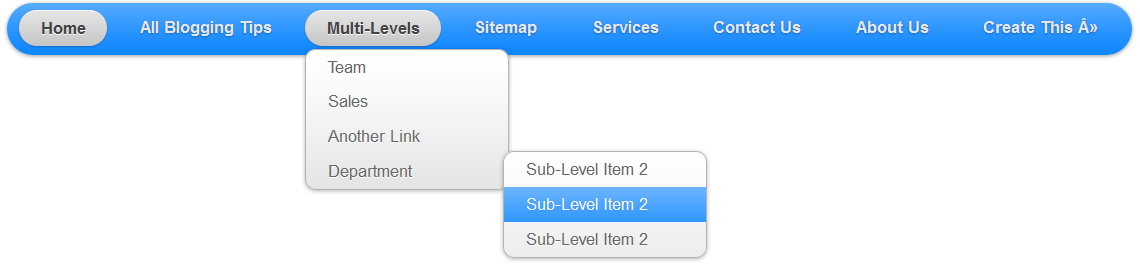
I recently posts Pure CSS3 Multi Level Drop Down Menu For Blogger V1. I gets good response for this so I decided to release Pure CSS3 Multi Level Drop Down Menu V1. This Multi Level Drop Down Menu is modifed version of previous css3 menu. I had added some cool features to this menu. This menu is a Stylish Pure CSS3 Multi Level Drop Down Menu For Blogger. It is compatible for almost all browsers like Mozilla Firefox and Google Chrome etc but the rounded corners and shadow will not be rendered properly. I had made installation so easy you just need to copy and paste menu code in your blogger blog widget. This Menu  is provided by webDesignerWall guys and it is widgetized and made compatible with Blogspot blog platform by MBT.

See Also

  • Css3 Drop Down Menu For Blogger V1
  • Smooth Multi Level Drop Down Menu for Blogger

Pure CSS3 Multi Level Drop Down Menu V2 Preview

stylish drop down menu v1

Live Demo

Add Pure CSS3 Multi Level Drop Down Menu V2 To Blogger

  1. Go To Blogger > Design
  2. Click on “Add a Gadget”
  3. Choose HTML/Javascript widget
  4. Paste the following code inside it


<style>
#ABT-Container {
    font: normal 1em Arial, Helvetica, sans-serif;
    background : #ddd; width:100%; float:left;   
}
a {
    color: #333;
}.example {
    background:#fff url(http://www.gowebbaby.com/wp-content/uploads/2011/12/website-designer.gif)center right  no-repeat;
    width:1200px;
    height:600px;
    border:1px #000 solid;
    margin:20px auto;
    padding:15px;
    border-radius:3px;
    -moz-border-radius:3px;
    -webkit-border-radius:3px;
}

#nav {
    margin: 0;
    padding: 7px 6px 0;
    background: #0080ff url(http://2.bp.blogspot.com/-A86MDTlHnVo/TtC-qF3gIQI/AAAAAAAAFbw/Vv41gIktCig/s1600/gradient.png) repeat-x 0 -110px;
    line-height: 100%;
    border-radius: 2em;
    -webkit-border-radius: 2em;
    -moz-border-radius: 2em;
    -webkit-box-shadow: 0 1px 3px rgba(0,0,0, .4);
    -moz-box-shadow: 0 1px 3px rgba(0,0,0, .4);
}
#nav li {
    margin: 0 5px;
    padding: 0 0 8px;
    float: left;
    position: relative;
    list-style: none; }

/* main level link */
#nav a {
    font-weight: bold;
    color: #e7e5e5;
    text-decoration: none;
    display: block;
    padding:  8px 20px;
    margin: 0;
    -webkit-border-radius: 1.6em;
    -moz-border-radius: 1.6em;
   
    text-shadow: 0 1px 1px rgba(0,0,0, .3);
}
#nav a:hover {
    background: #000;
    color: #fff;
}
/* main level link hover */
#nav .current a, #nav li:hover > a {
    background: #666 url(http://2.bp.blogspot.com/-A86MDTlHnVo/TtC-qF3gIQI/AAAAAAAAFbw/Vv41gIktCig/s1600/gradient.png) repeat-x 0 -40px;
    color: #444;
    border-top: solid 1px #f8f8f8;
    -webkit-box-shadow: 0 1px 1px rgba(0,0,0, .2);
    -moz-box-shadow: 0 1px 1px rgba(0,0,0, .2);
    box-shadow: 0 1px 1px rgba(0,0,0, .2);
    text-shadow: 0 1px 0 rgba(255,255,255, 1);
}
/* sub levels link hover */
#nav ul li:hover a, #nav li:hover li a {
    background: none;
    border: none;
    color: #666;
    -webkit-box-shadow: none;
    -moz-box-shadow: none;
}
#nav ul a:hover {
    background: #0080ff url(http://2.bp.blogspot.com/-A86MDTlHnVo/TtC-qF3gIQI/AAAAAAAAFbw/Vv41gIktCig/s1600/gradient.png) repeat-x 0 -100px !important;
    color: #fff !important;
text-align:left;
    -webkit-border-radius: 0;
    -moz-border-radius: 0;
    text-shadow: 0 1px 1px rgba(0,0,0, .1);
}
/* dropdown */
#nav li:hover > ul {
    display: block;
}
/* level 2 list */
#nav ul {
    display: none;
text-align:left;
    margin: 0;
    padding: 0;
    width: 185px;
    position: absolute;
    top: 35px;
    left: 0;
    background: #ddd url(http://2.bp.blogspot.com/-A86MDTlHnVo/TtC-qF3gIQI/AAAAAAAAFbw/Vv41gIktCig/s1600/gradient.png) repeat-x 0 0;
    border: solid 1px #b4b4b4;
    -webkit-border-radius: 10px;
    -moz-border-radius: 10px;
    border-radius: 10px;
    -webkit-box-shadow: 0 1px 3px rgba(0,0,0, .3);
    -moz-box-shadow: 0 1px 3px rgba(0,0,0, .3);
    box-shadow: 0 1px 3px rgba(0,0,0, .3);
}
#nav ul li {
    float: none;
    margin: 0;
    padding: 0;
}
#nav ul a {
    font-weight: normal;
    text-shadow: 0 1px 0 #fff;
}
/* level 3+ list */
#nav ul ul {
    left: 181px;
    top: -3px;
}
/* rounded corners of first and last link */
#nav ul li:first-child > a {
    -webkit-border-top-left-radius: 9px;
    -moz-border-radius-topleft: 9px;
    -webkit-border-top-right-radius: 9px;
    -moz-border-radius-topright: 9px;
}
#nav ul li:last-child > a {
    -webkit-border-bottom-left-radius: 9px;
    -moz-border-radius-bottomleft: 9px;
    -webkit-border-bottom-right-radius: 9px;
    -moz-border-radius-bottomright: 9px;
}
/* clearfix */
#nav:after {
    content: ".";
    display: block;
    clear: both;
    visibility: hidden;
    line-height: 0;
    height: 0;
}
#nav {
    display: inline-block;
}
</style>

<div id="ABT-Container">
<ul id="nav">
<li><a href="#">Home</a></li>
<li><a href="#">All Blogging Tips</a>
<ul>
<li><a href="#">Sub-Row</a>
<ul>
<li><a href="#">Sub Sub-Row 1
<li><a href="#">Sub Sub-Row 1</a></li>
</a></li></ul>
</li>
<li><a href="#">Sub-Row</a>
<ul>
               
<li><a href="#">Sub Sub-Row 2</a></li>
</ul>
</li>
<li><a href="#">Sub-Row</a></li>
</ul>
</li>

<li><a href="#">Multi-Levels</a>
<ul>
<li><a href="#">Team</a>
<ul>
<li><a href="#">Sub-Level Item 1</a></li>
<li><a href="#">Sub-Level Item 1</a>
<ul>
<li><a href="#">Sub-Level Item 11</a></li>
<li><a href="#">Sub-Level Item 22</a></li>
<li><a href="#">Sub-Level Item 33</a></li>
</ul>
</li>
                   
<li><a href="#">Sub-Level Item 1</a></li>
</ul>
</li>
<li><a href="#">Sales</a></li>
<li><a href="#">Another Link</a></li>
<li><a href="#">Department</a>
<ul>
<li><a href="#">Sub-Level Item 2</a></li>
</ul>
</li>
</ul>
</li><li><a href="#">Sitemap</a></li>   
<li><a href="#">Services</a></li>
<li><a href="#">Contact Us</a></li>
<li><a href="#">About Us</a></li>
<li><a href="https://allbloggingtips.com/2012/01/28/pure-css3-multi-level-drop-down-menu-v2">Create This »</a></li>

</ul></div>
<br/>

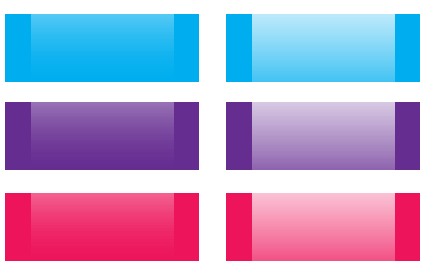
The best part about this Multi Level Drop Down Menu is that you can give it any colour you want because here we are using a transparent gradient image which can take any colour you want. Like:

Transperent ExapmleNow kindly make these customization changes to add your own links to menu:
  • Each TAB can be edited by directly understanding the following HTML code,

<li><a href=”#“>TAB TEXT</a></li>

In each case replace the hash sign (#) with your page URL or link and replace the text with your page title. I have kept the page titles unchanged in the code above so that you could easily edit them by seeing the demo.

Confused or Need Help?

If you need some extra help in removing rows or columns then please feel free to post your questions. You can discus it as much with me as possible. This will help others to better understand on how to make further changes. :D

Pure CSS3 Multi Level Drop Down Menu For Blogger V1

By Ammar Ali 13 Comments

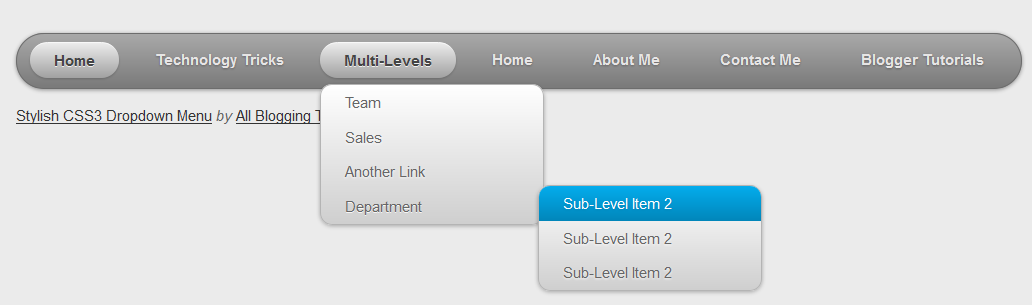
I recently posted Add Smooth Multi Level Drop-Down Menu In Blogger. But this is simple, smooth not just a perfect good looking Stylish Pure CSS3 Multi Level Drop Down Menu. Now I comes with Stylish Pure CSS3 Multi Level Drop Down Menu For Blogger. This menu is purely designed with CSS3 and No Images, No javascript is included in it. It is compatible for almost all browsers like Mozilla Firefox and Google Chrome etc but the rounded corners and shadow will not be rendered properly. This menu is provided by webDesignerWall. I have made installation method very easy you just need to copy and paste the code to where you want Multi Level Drop Down Menu to appear.

Pure CSS3 Multi Level Drop Down Menu Preview

stylish drop down menu v1

Live Demo

Add Multi Level Drop Down Menu To Blogger

  1. Go To Blogger > Design
  2. Click on “Add a Gadget”
  3. Choose HTML/Javascript widget
  4. Paste the following code inside it
<style>
#ABT-Container  {
    font: normal .8em/1.5em Arial, Helvetica, sans-serif;
    background: #ebebeb;
     width:100%; float:left;    
}

a {
    color: #333;
}
#nav {
    margin: 0;
    padding: 7px 6px 0;
    line-height: 100%;
    border-radius: 2em;

    -webkit-border-radius: 2em;
    -moz-border-radius: 2em;
    
    -webkit-box-shadow: 0 1px 3px rgba(0, 0, 0, .4);
    -moz-box-shadow: 0 1px 3px rgba(0, 0, 0, .4);

    background: #8b8b8b; /* for non-css3 browsers */
    filter:  progid:DXImageTransform.Microsoft.gradient(startColorstr='#a9a9a9', endColorstr='#7a7a7a'); /* for IE */
    background: -webkit-gradient(linear, left top, left bottom, from(#a9a9a9), to(#7a7a7a)); /* for webkit browsers */
    background: -moz-linear-gradient(top,  #a9a9a9,  #7a7a7a); /* for firefox 3.6+ */

    border: solid 1px #6d6d6d;
}
#nav li {
    margin: 0 5px;
    padding: 0 0 8px;
    float: left;
    position: relative;
    list-style: none;
}
/* main level link */
#nav a {
    font-weight: bold;
    color: #e7e5e5;
    text-decoration: none;
    display: block;
    padding:  8px 20px;
    margin: 0;
    -webkit-border-radius: 1.6em;
    -moz-border-radius: 1.6em;
    text-shadow: 0 1px 1px rgba(0, 0, 0, .3);
}
/* main level link hover */
#nav .current a, #nav li:hover > a {
    background: #d1d1d1; /* for non-css3 browsers */
    filter:  progid:DXImageTransform.Microsoft.gradient(startColorstr='#ebebeb', endColorstr='#a1a1a1'); /* for IE */
    background: -webkit-gradient(linear, left top, left bottom, from(#ebebeb), to(#a1a1a1)); /* for webkit browsers */
    background: -moz-linear-gradient(top,  #ebebeb,  #a1a1a1); /* for firefox 3.6+ */

    color: #444;
    border-top: solid 1px #f8f8f8;
    -webkit-box-shadow: 0 1px 1px rgba(0, 0, 0, .2);
    -moz-box-shadow: 0 1px 1px rgba(0, 0, 0, .2);
    box-shadow: 0 1px 1px rgba(0, 0, 0, .2);
    text-shadow: 0 1px 0 rgba(255, 255, 255, .8);
}
/* sub levels link hover */
#nav ul li:hover a, #nav li:hover li a {
    background: none;
    border: none;
    color: #666;
    -webkit-box-shadow: none;
    -moz-box-shadow: none;
}
#nav ul a:hover {
    background: #0399d4 !important; /* for non-css3 browsers */
    filter:  progid:DXImageTransform.Microsoft.gradient(startColorstr='#04acec', endColorstr='#0186ba'); /* for IE */
    background: -webkit-gradient(linear, left top, left bottom, from(#04acec), to(#0186ba)) !important; /* for webkit browsers */
    background: -moz-linear-gradient(top,  #04acec,  #0186ba) !important; /* for firefox 3.6+ */

    color: #fff !important;
    -webkit-border-radius: 0;
    -moz-border-radius: 0;
    text-shadow: 0 1px 1px rgba(0, 0, 0, .1);
}
/* level 2 list */
#nav ul {
    background: #ddd; /* for non-css3 browsers */
    filter:  progid:DXImageTransform.Microsoft.gradient(startColorstr='#ffffff', endColorstr='#cfcfcf'); /* for IE */
    background: -webkit-gradient(linear, left top, left bottom, from(#fff), to(#cfcfcf)); /* for webkit browsers */
    background: -moz-linear-gradient(top,  #fff,  #cfcfcf); /* for firefox 3.6+ */

    display: none;
    margin: 0;
    padding: 0;
    width: 185px;
    position: absolute;
    top: 35px;
    left: 0;
    border: solid 1px #b4b4b4;
    -webkit-border-radius: 10px;
    -moz-border-radius: 10px;
    border-radius: 10px;
    -webkit-box-shadow: 0 1px 3px rgba(0, 0, 0, .3);
    -moz-box-shadow: 0 1px 3px rgba(0, 0, 0, .3);
    box-shadow: 0 1px 3px rgba(0, 0, 0, .3);
}
/* dropdown */
#nav li:hover > ul {
    display: block;
}
#nav ul li {
    float: none;
    margin: 0;
    padding: 0;
}
#nav ul a {
    font-weight: normal;
    text-shadow: 0 1px 1px rgba(255, 255, 255, .9);
}
/* level 3+ list */
#nav ul ul {
    left: 181px;
    top: -3px;
}
/* rounded corners for first and last child */
#nav ul li:first-child > a {
    -webkit-border-top-left-radius: 9px;
    -moz-border-radius-topleft: 9px;
    -webkit-border-top-right-radius: 9px;
    -moz-border-radius-topright: 9px;
}
#nav ul li:last-child > a {
    -webkit-border-bottom-left-radius: 9px;
    -moz-border-radius-bottomleft: 9px;
    -webkit-border-bottom-right-radius: 9px;
    -moz-border-radius-bottomright: 9px;
}
/* clearfix */
#nav:after {
    content: ".";
    display: block;
    clear: both;
    visibility: hidden;
    line-height: 0;
    height: 0;
}
#nav {
    display: inline-block;
}
html[xmlns] #nav {
    display: block;
}
* html #nav {
    height: 1%;
}
</style>

<div id="ABT-Container">
<ul id="nav"><li><a href="#">Home</a></li>
<li><a href="#">Technology Tricks</a>
<ul>
<li><a href="#">Sub-Row</a>
<ul>
<li><a href="#">Sub Sub-Row 1</a></li>
</a></li></ul>
</li>
<li><a href="#">Sub-Row</a>
<ul>
               
<li><a href="#">Sub Sub-Row 2</a></li>
</ul>
</li>
<li><a href="#">Sub-Row</a></li>
</ul>
</li>

<li><a href="#">Multi-Levels</a>
<ul>
<li><a href="#">Team</a>
<ul>
<li><a href="#">Sub-Level Item 1</a></li>
<li><a href="#">Sub-Level Item 1</a>
<ul>
<li><a href="#">Sub-Level Item 11</a></li>
<li><a href="#">Sub-Level Item 22</a></li>
<li><a href="#">Sub-Level Item 33</a></li>
</ul>
</li>
                   
<li><a href="#">Sub-Level Item 1</a></li>
</ul>
</li>
<li><a href="#">Sales</a></li>
<li><a href="#">Another Link</a></li>
<li><a href="#">Department</a>
<ul>
<li><a href="#">Sub-Level Item 2</a></li>
</ul>
</li>
</ul>
</li><li><a href="#">Home</a></li>   
<li><a href="#">About Me</a></li>
<li><a href="#">Contact Me</a></li>
<li><a href="#">Blogger Tutorials</a></li>


</ul>
</div>

The best part about this Multi Level Drop Down Menu is that you can give it any colour you want because here we are using a transparent gradient image which can take any colour you want. Like:

Transperent ExapmleNow kindly make these customization changes to add your own links to menu:

  • Each TAB can be edited by directly understanding the following  HTML code,

<li><a href=”#“>TAB TEXT</a></li>

In each case replace the hash sign (#) with your page URL or link and replace the text with your page title. I have kept the page titles unchanged in the code above so that you could easily edit them by seeing the demo.

This is V1 of Multi Level Drop Down Menu. I will soon publish another article on this cool Multi Level Drop Down Menu. Till than stay tune!

Confused or Need Help?

If you need some extra help in removing rows or columns then please feel free to post your questions. You can discus it as much with me as possible. This will help others to better understand on how to make further changes. :D

Add Smooth Multi Level Drop-Down Menu In Blogger

By Ammar Ali Leave a Comment

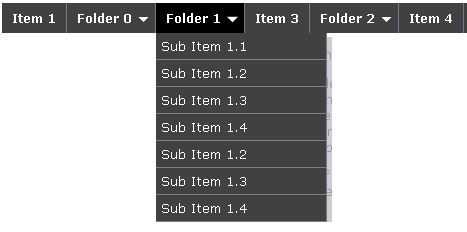
Now you can easily Add Navigation Menu in Blogger with ease. Smooth Navigation Menu is a multi level, CSS list based menu powered using jQuery that makes website navigation a smooth and that’s a good thing given the important role of this element in any site.Smooth-Navigational-Menu-in-Blogger

Steps to Add Smooth Multi Level Drop-Down Menu In Blogger

Note: Before making any changes to your template, take a full backup of your blogger template.

#Step 1. Log in to your Blogger Dashboard and Navigate to Design > Edit HTML.

Design Edit HTML

#Step 2. Find this code:</head> and replace it wit this code:

<link href=’https://sites.google.com/site/addinblogger/how-to-add-in-blogger/ddsmoothmenu.css’ rel=’stylesheet’ type=’text/css’/>
<link href=’https://sites.google.com/site/addinblogger/how-to-add-in-blogger/ddsmoothmenu-v.css’ rel=’stylesheet’ type=’text/css’/>
<script src=’http://ajax.googleapis.com/ajax/libs/jquery/1.2.6/jquery.min.js’ type=’text/javascript’/>
<script src=’https://sites.google.com/site/addinblogger/how-to-add-in-blogger/ddsmoothmenu.js’ type=’text/javascript’>
/***********************************************
* Smooth Navigational Menu- (c) Dynamic Drive DHTML code library (www.dynamicdrive.com)
* This notice MUST stay intact for legal use
* Visit Dynamic Drive at http://www.dynamicdrive.com/ for full source code
***********************************************/
</script>
<script type=’text/javascript’>
ddsmoothmenu.init({
mainmenuid: “smoothmenu1”, //menu DIV id
orientation: ‘h’, //Horizontal or vertical menu: Set to “h” or “v”
classname: ‘ddsmoothmenu’, //class added to menu’s outer DIV
//customtheme: [“#1c5a80”, “#18374a”],
contentsource: “markup” //”markup” or [“container_id”, “path_to_menu_file”]
})
ddsmoothmenu.init({
mainmenuid: “smoothmenu2”, //Menu DIV id
orientation: ‘v’, //Horizontal or vertical menu: Set to “h” or “v”
classname: ‘ddsmoothmenu-v’, //class added to menu’s outer DIV
//customtheme: [“#804000”, “#482400”],
contentsource: “markup” //”markup” or [“container_id”, “path_to_menu_file”]
})
</script>
</head>

#Step 3. Now navigate to Design > Page Element and click on Add a Gadget > HTML/Javascript and insert the following code and click Save button.

Design-Page Element
<h2>Example 1</h2>
<div id=”smoothmenu1″>
<ul>
<li><a href=”http://bloggerhowtotips.blogspot.com/”>Blogger How To Tips</a></li>
<li><a href=”#”>Folder 0</a>
<ul>
<li><a href=”#”>Sub Item 1.1</a></li>
<li><a href=”#”>Sub Item 1.2</a></li>
<li><a href=”#”>Sub Item 1.3</a></li>
<li><a href=”#”>Sub Item 1.4</a></li>
<li><a href=”#”>Sub Item 1.2</a></li>
<li><a href=”#”>Sub Item 1.3</a></li>
<li><a href=”#”>Sub Item 1.4</a></li>
</ul>
</li>
<li><a href=”#”>Folder 1</a>
<ul>
<li><a href=”#”>Sub Item 1.1</a></li>
<li><a href=”#”>Sub Item 1.2</a></li>
<li><a href=”#”>Sub Item 1.3</a></li>
<li><a href=”#”>Sub Item 1.4</a></li>
<li><a href=”#”>Sub Item 1.2</a></li>
<li><a href=”#”>Sub Item 1.3</a></li>
<li><a href=”#”>Sub Item 1.4</a></li>
</ul>
</li>
<li><a href=”#”>Item 3</a></li>
<li><a href=”#”>Folder 2</a>
<ul>
<li><a href=”#”>Sub Item 2.1</a></li>
<li><a href=”#”>Folder 2.1</a>
<ul>
<li><a href=”#”>Sub Item 2.1.1</a></li>
<li><a href=”#”>Sub Item 2.1.2</a></li>
<li><a href=”#”>Folder 3.1.1</a>
<ul>
<li><a href=”#”>Sub Item 3.1.1.1</a></li>
<li><a href=”#”>Sub Item 3.1.1.2</a></li>
<li><a href=”#”>Sub Item 3.1.1.3</a></li>
<li><a href=”#”>Sub Item 3.1.1.4</a></li>
<li><a href=”#”>Sub Item 3.1.1.5</a></li>
</ul>
</li>
<li><a href=”#”>Sub Item 2.1.4</a></li>
</ul>
</li>
</ul>
</li>
<li><a href=”https://allbloggingtips.com/”>All Blogging Tips</a></li>
</ul>
<br style=”clear: left” />
</div>
<h2 style=”margin-top:200px”>Example 2</h2>
<div id=”smoothmenu2″>
<ul>
<li><a href=”https://allbloggingtips.com/”>Blogger Tips and Tricks</a></li>
<li><a href=”#”>Folder 0</a>
<ul>
<li><a href=”#”>Sub Item 1.1</a></li>
<li><a href=”#”>Sub Item 1.2</a></li>
<li><a href=”#”>Sub Item 1.3</a></li>
<li><a href=”#”>Sub Item 1.4</a></li>
<li><a href=”#”>Sub Item 1.2</a></li>
<li><a href=”#”>Sub Item 1.3</a></li>
<li><a href=”#”>Sub Item 1.4</a></li>
</ul>
</li>
<li><a href=”#”>Folder 1</a>
<ul>
<li><a href=”#”>Sub Item 1.1</a></li>
<li><a href=”#”>Sub Item 1.2</a></li>
<li><a href=”#”>Sub Item 1.3</a></li>
<li><a href=”#”>Sub Item 1.4</a></li>
<li><a href=”#”>Sub Item 1.2</a></li>
<li><a href=”#”>Sub Item 1.3</a></li>
<li><a href=”#”>Sub Item 1.4</a></li>
</ul>
</li>
<li><a href=”#”>Item 3</a></li>
<li><a href=”#”>Folder 2</a>
<ul>
<li><a href=”#”>Sub Item 2.1</a></li>
<li><a href=”#”>Folder 2.1</a>
<ul>
<li><a href=”#”>Sub Item 2.1.1</a></li>
<li><a href=”#”>Sub Item 2.1.2</a></li>
<li><a href=”#”>Folder 3.1.1</a>
<ul>
<li><a href=”#”>Sub Item 3.1.1.1</a></li>
<li><a href=”#”>Sub Item 3.1.1.2</a></li>
<li><a href=”#”>Sub Item 3.1.1.3</a></li>
<li><a href=”#”>Sub Item 3.1.1.4</a></li>
<li><a href=”#”>Sub Item 3.1.1.5</a></li>
</ul>
</li>
<li><a href=”#”>Sub Item 2.1.4</a></li>
</ul>
</li>
</ul>
</li>
<li><a href=”https://allbloggingtips.com/”>All Blogspot Tips</a></li>
</ul>
<br style=”clear: left” />
</div>

#Step 4. Save template and done!.

add menu in blogger

After adding the menu your blog layout will be look like in image above, as usual if you have any doubt please comment.

Credits

Above smooth multi level drop-down menu is powered by DynamicDrive. See this link for more customization: http://www.dynamicdrive.com/dynamicindex1/ddsmoothmenu.htm

7 Most Popular and Best Statistics Plugin For WordPress

By Ammar Ali 82 Comments

jetpack wordpress plugin

Last updated in February 2026.

Are you running a WordPress blog? It’s not enough to have a good hosting, beautiful theme and content. Your hosting plays a major role in how accurately your traffic is tracked, which is why many bloggers choose a reliable WordPress hosting provider like InMotion Hosting or similar managed hosts.

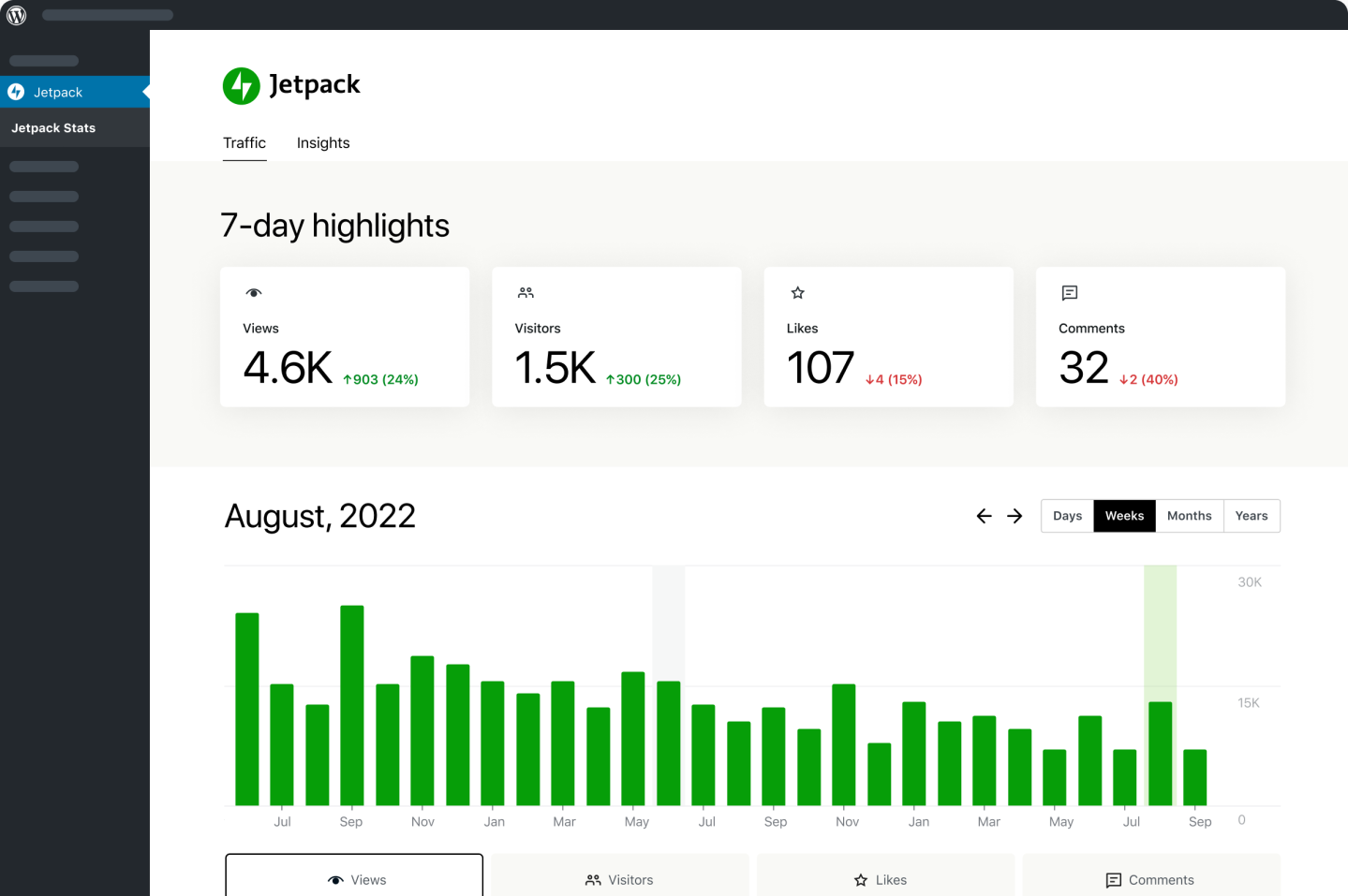
You need to find out who your audience it, who are visiting your site, where they are coming for, what they are reading. Unfortunately, WordPress doesn’t come with built-in stats feature to monitor traffic and visitors, but there are certainly a few plugins you can use to keep the record of your data amount, tracking of the users and visitors, tracks the offline activity, etc. A WordPress statistics plugin is a necessary thing for your website.. [Read more…] about 7 Most Popular and Best Statistics Plugin For WordPress

  • « Go to Previous Page
  • Page 1
  • Interim pages omitted …
  • Page 65
  • Page 66
  • Page 67
  • Page 68
  • Page 69
  • Page 70
  • Go to Next Page »

Primary Sidebar

Get Blogging & SEO Tips by Email

Get helpful blogging, SEO, and content tips delivered straight to your inbox. No spam.

Join 3,489 other subscribers

Popular Posts

  • Is Your Blog Properly Optimized for Performance and SEO?
  • 10 Powerful Ways to Become a Famous Blogger
  • Google AdSense vs Affiliate Marketing: A Simple Comparison for Beginners
  • Effective Ways to Increase Content Reach and Audience Engagement
  • 12 Things to Do Before Applying for Google AdSense
  • Are Backlinks Becoming Less Valuable in Modern SEO?
  • Step-by-Step Guide to Creating a Successful Travel Blog
  • How to Start as a Freelance Writer & Is It Worth?
  • Add Smooth Multi Level Drop-Down Menu In Blogger
  • How To Delete A Blogger Blog Permanently In 5 Minutes (+ FAQs)

Blogging Tools I Use

Over the years, I’ve tested dozens of blogging and WordPress tools. Below are the tools I personally use and recommend for blogging, performance, SEO, and monetization.

Blogging Tools I Use →

Footer

About This Site

All Blogging Tips helps beginners learn how to start, grow, and monetize blogs using WordPress. I share practical guides and honest recommendations based on real blogging experience.

Read more →

Site & Resources

  • Tools I Use
  • About
  • Advertise Here
  • Contact
  • Disclosure Policy
  • Copyright Policy
  • Privacy Policy

Start & Grow Your Blog

  • A Ridiculously Helpful Guide to Start Your Own Blog In 10 Minutes
  • How To Grow Your Blog And Build An Audience
  • How To Make Money From Your Blog
  • Cheap WordPress Hosting
  • Free WordPress Hosting

Copyright © 2026 All Blogging Tips · Powered by InMotion Hosting · WordPress · Log in