
• Skip to primary navigation
  • Skip to main content
  • Skip to primary sidebar
  • Skip to footer
logo

All Blogging Tips

Everything About Blogging

  • Home
  • Start a Blog
  • Grow Your Blog
  • About
  • Contact
  • Tools I Use

Search Results for: ai

Snow Falling Effect With Bells Widget For Your Blog

By Ammar Ali 4 Comments

In this post I have a very cool Snow Falling Effect With Bells widget. You can use to super charge your blog over the Christmas. With just a small piece of code you have Snow Flakes gently falling down your blog. Adding Snow Falling Effect With Bells is very simple and I’m sure it won’t disrupt the readers. Before you add the Snow to your blog you can check out the demo.

LIVE DEMO

Adding Snow Falling Effect With Bells Widget

Adding To Blogger

  1. Go to Design > Page Elements.
  2. Click Add A Gadget.
  3. In Add A Gadget window, select HTML/Javascript .
  4. Copy the code below and paste it inside the content box.
  5. Save the gadget.
  6. Drag the gadget and reposition it under Blog Posts gadget.
  7. Click Save button (top right hand corner).

Adding To WordPress

  1. Go to Dashboard > Appearance > Widgets > Available Widgets.
  2. Drag Text widget into a sidebar.
  3. Paste in the code.
  4. Save.

If below code is not working,  please download this code

<script type="text/javascript">

            //Configure below to change URL path to the snow image
      var snowsrc="http://3.bp.blogspot.com/-0l_0DkjlekY/Tt-6P7Vam3I/AAAAAAAAFjI/ht10gKN3-Ys/s400/falling-snow.png"
      // Configure below to change number of snow to render
      var no = 15;
      // Configure whether snow should disappear after x seconds (0=never):
      var hidesnowtime = 0;
      // Configure how much snow should drop down before fading ("windowheight" or "pageheight")
      var snowdistance = "pageheight";

    ///////////Stop Config//////////////////////////////////

      var ie4up = (document.all) ? 1 : 0;
      var ns6up = (document.getElementById&&!document.all) ? 1 : 0;

        function iecompattest(){
        return (document.compatMode && document.compatMode!="BackCompat")? document.documentElement : document.body
        }

      var dx, xp, yp;    // coordinate and position variables
      var am, stx, sty;  // amplitude and step variables
      var i, doc_width = 800, doc_height = 600;

      if (ns6up) {
        doc_width = self.innerWidth;
        doc_height = self.innerHeight;
      } else if (ie4up) {
        doc_width = iecompattest().clientWidth;
        doc_height = iecompattest().clientHeight;
      }

      dx = new Array();
      xp = new Array();
      yp = new Array();
      am = new Array();
      stx = new Array();
      sty = new Array();
      snowsrc=(snowsrc.indexOf("dynamicdrive.com")!=-1)? "   http://3.bp.blogspot.com/-0l_0DkjlekY/Tt-6P7Vam3I/AAAAAAAAFjI/ht10gKN3-Ys/s400/falling-snow.png" : snowsrc
      for (i = 0; i < no;    i) { 
        dx[i] = 0;                        // set coordinate variables
        xp[i] = Math.random()*(doc_width-50);  // set position variables
        yp[i] = Math.random()*doc_height;
        am[i] = Math.random()*20;         // set amplitude variables
        stx[i] = 0.02   Math.random()/10; // set step variables
        sty[i] = 0.7   Math.random();     // set step variables
            if (ie4up||ns6up) {
          if (i == 0) {
            document.write("<div id=\"dot"  i  "\" style=\"POSITION: absolute; Z-INDEX: "  i  "; VISIBILITY: visible; TOP: 15px; LEFT: 15px;\"><a href=\"http://dynamicdrive.com\"><img src='" snowsrc "' border=\"0\"><\/a><\/div>");
          } else {
            document.write("<div id=\"dot"  i  "\" style=\"POSITION: absolute; Z-INDEX: "  i  "; VISIBILITY: visible; TOP: 15px; LEFT: 15px;\"><img src='" snowsrc "' border=\"0\"><\/div>");
          }
        }
      }

      function snowIE_NS6() {  // IE and NS6 main animation function
        doc_width = ns6up?window.innerWidth-10 : iecompattest().clientWidth-10;
            doc_height=(window.innerHeight && snowdistance=="windowheight")? window.innerHeight : (ie4up && snowdistance=="windowheight")?  iecompattest().clientHeight : (ie4up && !window.opera && snowdistance=="pageheight")? iecompattest().scrollHeight : iecompattest().offsetHeight;
        for (i = 0; i < no;    i) {  // iterate for every dot
          yp[i]  = sty[i];
          if (yp[i] > doc_height-50) {
            xp[i] = Math.random()*(doc_width-am[i]-30);
            yp[i] = 0;
            stx[i] = 0.02   Math.random()/10;
            sty[i] = 0.7   Math.random();
          }
          dx[i]  = stx[i];
          document.getElementById("dot" i).style.top=yp[i] "px";
          document.getElementById("dot" i).style.left=xp[i]   am[i]*Math.sin(dx[i]) "px"; 
        }
        snowtimer=setTimeout("snowIE_NS6()", 10);
      }

        function hidesnow(){
            if (window.snowtimer) clearTimeout(snowtimer)
            for (i=0; i<no; i  ) document.getElementById("dot" i).style.visibility="hidden"
        }

    if (ie4up||ns6up){
        snowIE_NS6();
            if (hidesnowtime>0)
            setTimeout("hidesnow()", hidesnowtime*1000)
            }

    </script>

<br /> <img src="http://2.bp.blogspot.com/_u4gySN2ZgqE/TQ-G1GVAD3I/AAAAAAAABtw/doqIyU32ngs/s1600/christmas-bells-icon.png" style="position:fixed; top: 0px;left:0px;border:none;"/><img class="aneesh" src="http://3.bp.blogspot.com/_u4gySN2ZgqE/TQ-SkcTSrTI/AAAAAAAABt4/Qqpj5MR3tU8/s1600/christmas-bells-icon-right.png" style="position:fixed; top: 0px;right:0px;border:none;"/><br />

<script> if (typeof bp_onload_queue == 'undefined') var bp_onload_queue = [];      if (typeof bp_dom_loaded == 'boolean') bp_dom_loaded = false;     else var bp_dom_loaded = false;      if (typeof bp_async_loader != 'function') {         function bp_async_loader(src, callback, id) {              var script = document.createElement('script');             script.type = "text/javascript";             script.async = true;             script.src = src;             script.id = id;             /*Check if script previously loaded.*/             var previous_script = document.getElementById(id);             if (previous_script) if (previous_script.readyState == "loaded" || previous_script.readyState == "complete") {                 callback();                 return;             } else {                  script = previous_script;             }             if (script.onload != null) previous_callback = script.onload;             script.onload = script.onreadystatechange = function() {                 var newcallback;                 if (previous_script && previous_callback) newcallback = function() {                     previous_callback();                     callback();                 };                 else newcallback = callback;                 if (bp_dom_loaded) {                     newcallback();                 } else bp_onload_queue.push(newcallback);                 /* clean up for IE and Opera*/                 script.onload = null;                 script.onreadystatechange = null;             };             var head = document.getElementsByTagName('head')[0];             if (!previous_script) head.appendChild(script);          }     }      if (typeof bp_domLoaded != 'function') function bp_domLoaded(callback) {         bp_dom_loaded = true;         var len = bp_onload_queue.length;         for (var i = 0; i < len; i  ) {             bp_onload_queue[i]();         }     }     /*JS gets loaded here */      bp_domLoaded();      /*Loading jQuery Asynchronously */     bp_async_loader("http://ajax.googleapis.com/ajax/libs/jquery/1.7.1/jquery.min.js", function() {          bp_async_loader("http://blogergadgets.googlecode.com/svn/trunk/snowfall.min.jquery.js", function() {}, "bp-snow");      }, "jQueryjs"); </script> <a href="https://allbloggingtips.com/2011/12/22/snow-falling-effect-with-bells-widget-for-your-blog/" target="_blank"><img src="https://lh5.googleusercontent.com/-yPvmBp_p424/TuYsnjeIzaI/AAAAAAAACNY/KrkMl02fzh0/I/snowfall-widget-for-blogger.png" alt="Snowfall Widget for Blogger" /></a>


Hope you will like this widget. DO comment if you want to get in touch with me or facing problem with this Snow Falling Effect With Bells!

How To Add Stylish Breadcrumbs Navigation In Blogger

By Ammar Ali 9 Comments

Breadcrumbs or breadcrumb is a navigation used in user interface, typically it appear horizontally across the top of a web page , after navigation, usually below title bars or headers in blog area. You can also find example of breadcrumbs in my blog after navigation. See a screenshot to know what actually are a breadcrumbs.

How To Add Stylish Breadcrumbs Navigation In Blogger

I suggest every Bloggers who are using Blogspot Platform to add breadcrumbs. This help people to easily know about your post and also it helps you in SEO purpose.

Typical breadcrumbs look like this:

Home page > Section page > Subsection page or Home page >> Section page >> Subsection page.

Backup You Template Before we add Breadcrumbs in Blogger

After backing up blogger template Follow below given simple steps on How To Add Stylish Breadcrumbs Navigation In Blogger

Steps to Add Breadcrumbs in Blogger

  • Login to Blogger Dashboard > Design > Edit Html
  • Find Below code

<b:include data='top' name='status-message'/>

and replace it wit this code:

<b:include data=’top’ name=’status-message’/>

<b:include data='posts' name='breadcrumb'/>

#Step 3. Now Find this code:

<b:includable id='main' var='top'>e


  • and replace it with below code
<b:includable id='breadcrumb' var='posts'>
<b:if cond='data:blog.homepageUrl == data:blog.url'>
<!-- No breadcrumb on home page -->
<b:else/>
<b:if cond='data:blog.pageType == "item"'>
<!-- breadcrumb for the post page -->
<p class='breadcrumbs'>
<span class='post-labels'>
<a expr:href='data:blog.homepageUrl' rel='tag'>Home</a>
<b:loop values='data:posts' var='post'>
<b:if cond='data:post.labels'>
<b:loop values='data:post.labels' var='label'>
<b:if cond='data:label.isLast == "true"'> »
<a expr:href='data:label.url' rel='tag'><data:label.name/></a>
</b:if>
</b:loop>
<b:else/>
» Unlabelled
</b:if>
» <span><data:post.title/></span>
</b:loop>
</span>
</p>
<b:else/>
<b:if cond='data:blog.pageType == "archive"'>
<!-- breadcrumb for the label archive page and search pages.. -->
<p class='breadcrumbs'>
<span class='post-labels'>
<a expr:href='data:blog.homepageUrl'>Home</a> » Archives for <data:blog.pageName/>
</span>
</p>
<b:else/>
<b:if cond='data:blog.pageType == "index"'>
<p class='breadcrumbs'>
<span class='post-labels'>
<b:if cond='data:blog.pageName == ""'>
<a expr:href='data:blog.homepageUrl'>Home</a> » All posts
<b:else/>
<a expr:href='data:blog.homepageUrl'>Home</a> » Posts filed under <data:blog.pageName/>
</b:if>
</span>
</p>
</b:if>
</b:if>
</b:if>
</b:if>
</b:includable>
<b:includable id='main' var='top'>

Making It Cool with CSS

To add cool effect to Breadcrumbs follow below steps.

  • Find this code
]]></b:skin>

and replace it with

/* Breadcrumbs Css info @ https://allbloggingtips.com */
.breadcrumbs {
padding:5px 5px 5px 0px;
margin: 0px 0px 15px 0px;
font-size:95%;
line-height: 1.4em;
border-bottom:2px solid #e6e4e3;}
]]></b:skin>
To add Hover Effect
  • Insert below code after adding code in above step
.breadcrumbs :hover{
border-bottom:2px dashed #e6e4e3;
background:#f1f1f1;
}
If you are using multiple labels for one post then this breadcrumbs will show only the last label you have added, so put label at end in Labels for this post: section for which you want to show in your breadcrumb.

That’s All. If you are using WordPress Theme than i will publish a article on How to Add Breadcrumbs in WordPress themes. Till keep visiting. Got any problem feel free to comment!

Use Facebook Smileys and Emotions On Facebook Chat

By Ammar Ali 4 Comments

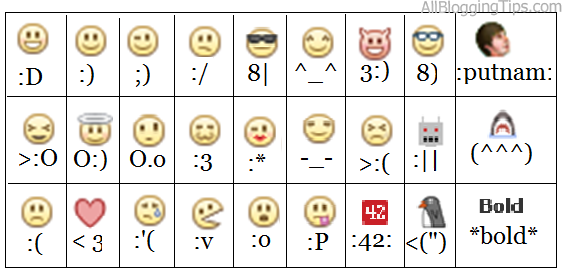
There’s a stack of guides all over the net listing all the smileys you can send in Facebook and many forum posts discussing the formatting options. We’re yet to find one good one that lumps it all into one page, with the latest facebook smileys codes, in a nice easy to read format, so we’ve decided to oblige. If you know of any facebook smileys or emotions we are missing, let us know!

Al Facebook Chat Emotions and Smiyles

Use Facebook Smileys and Emotions : Complete List !

Here is the list of all Facebook Smileys Emoticons and their shortcuts:


Emoticons Shortcut Key Description
like thump up facebook chat emoticons (y) (Y) Like / Thumb Up Facebook Chat Emoticons NEW!!
42 red facebook chat emoticon :42: 42 Red Number FaceBook Chat Emoticon
facebook chat emoticon angel O:) O:-) Angel FaceBook Chat Emoticon
facebook chat emoticon confused o.O O.o Confused FaceBook Chat Emoticon
facebook chat emoticon cry :'( Cry / Tears Eye FaceBook Chat Emoticon
facebook chat emoticon curly lips :3 Curly Lips Facebook Emoticon / cute / cat-like
facebook chat emoticon devil 3:) 3:-) Devil / Satan / Vampire FaceBook Chat Emoticon
facebook chat emoticon frown :-( :( :[ =( Frown / Sad FaceBook Chat Emoticon
Facebook Chat Emoticon Gasp :-O :O :-o :o Gasp / Surprise FaceBook Chat Emoticon
facebook chat emoticon glasses 8-) 8) B-) B) Glasses / Blue Glasses FaceBook Chat Emoticon
facebook chat emoticon grin :-D :D =D Grin Facebook Chat Emoticon (Big Smile)
facebook chat emoticon grumpy >:( >:-( Grumpy FaceBook Chat Emoticon
facebook chat emoticon heart <3 Heart / Love FaceBook Chat Emoticon
facebook chat emoticon kiki ^_^ Kiki FaceBook Chat Emoticon
facebook chat emoticon kiss :-* :* Kiss Facebook Chat Emoticon
facebook chat emoticon pacman :v Pacman Facebook Chat Emoticon
facebook chat emoticon penguin <(") Penguin Facebook Chat Emoticon
facebook chat emoticon chris putnam :putnam: Putnam (Chris Putnam) Facebook Chat Emoticon
facebook chat emoticon robot :|] Robot Facebook Chat Emoticon
facebook chat emoticon shark (^^^) Shark FaceBook Chat Emoticon
facebook chat emoticon smile :-) :) :] =) Smile Facebook Chat Emoticon
facebook chat emoticon squint -_- Squint FaceBook Chat Emoticon
facebook chat emoticon sun glasses 8-| 8| B-| B| Sun / Black Glasses FaceBook Chat Emoticon
facebook chat emoticon tongue :-P :P :-p :p =P Tongue FaceBook Chat Emoticon
facebook chat emoticon unsure :/ :-/ : :- Unsure Facebook Chat Emoticon
facebook chat emoticon upset >:O >:-O >:o >:-o Upset FaceBook Chat Emoticon
facebook chat emoticon wink ;-) ;) Wink FaceBook Chat Emoticon

 
Facebook smileys and emoticons can add a hint of personality to the message you’re sending and maybe even some humor. If you happen to be at a loss for words, insert an emoticon. There are different variations the emoticons can be used for but they all generally follow the same rules. IF i miss any emotion in this tutorial Use Facebook Smileys and Emotions On Facebook Chat : Complete List !

How to Add Three Column Footer Widget in Blogger

By Ammar Ali 11 Comments

You might have seen a three column footer at many professional or commercial blogs. Where you can add stuffs. Take my three column footer as example. Footer make visitors busy and give him a good impression at End of your blog. It contains 3 columns widgets where you can add your own choice of widgets. You can easily Three Column Footer Widget and customize it as you want. If you are using WordPress Thesis Theme than check out this tutorial to add Footer Widget  in Thesis. See a screenshot.

Backup your template before adding following footer
footer


How to Add Three Column Footer Widget in Blogger (updated)

Follow these steps, to add Three Column Footer Widget

Step 1:

Go to Blogger Dashboard > Design > Edit Html

Step 2:

Backup Your Template

Step 3:

Search for ]]></b:skin> now paste the following CSS code just above ]]></b:skin>

#lower {
border-top: #737373 6px solid;
margin:auto;
font-family: Georgia;
width: 960px;
padding: 0px 0px 10px 0px;
background:#1f1f1f;
}
#lower a {
color: #DBDBDB;
font-family: Georgia;
}
#lower-wrapper {
margin:auto;
font-family: Georgia;
padding: 20px 0px 20px 0px;
width: 960px;
}
#lowerbar-wrapper {
background:#1f1f1f;
float: left;
color: #ebedee;
font-family: Georgia;
margin: 0px 5px auto;
padding-bottom: 20px;
width: 32%;
text-align: justify;
font-size:100%;
line-height: 1.6em;
word-wrap: break-word;
overflow: hidden;
}
.lowerbar {margin: 0; padding: 0;}
.lowerbar .widget {margin: 0; padding: 10px 20px 0px 20px;}
.lowerbar h2 {
margin: 0px 0px 10px 0px;
padding: 3px 0px 3px 0px;
text-align: left;
color:#fff;
text-transform:uppercase;
font: bold 16px Arial, Tahoma, Verdana;
border-bottom:3px solid #666666;
}
.lowerbar ul {
list-style:none;
margin: 0;
padding: 0;
}.lowerbar li a {
width: 265px;
font-family: Georgia;
background: #3f3f3f;
border: 1px solid #111;
line-height: 1.4em;
-moz-border-radius: 5px;
padding: 0.5em;
margin-bottom: 11px;
margin-right: 3px;
-webkit-border-radius: 5px;
overflow: hidden;
color:#000000;
}.lowerbar li a:visited {
width: 265px;
font-family: Georgia;
background: #3f3f3f;
border: 1px solid #111;
line-height: 1.4em;
-moz-border-radius: 5px;
padding: 0.5em;
margin-bottom: 11px;
margin-right: 3px;
-webkit-border-radius: 5px;
overflow: hidden;
color:#000000;
}.lowerbar li a:hover {
background: #4f4f4f;
border: 1px solid #7a7a7a;
line-height: 1.4em;
-moz-border-radius: 5px;
padding: 0.5em; -webkit-border-radius: 5px;
overflow: hidden;
color:#000000;
}.lowerbar a {
font-family: Georgia;
background: #3f3f3f;
border: 1px solid #111;
line-height: 1.4em;
float:left;
-moz-border-radius: 5px;
padding: 0.5em;
margin-right: 3px;
margin-bottom: 11px;
-webkit-border-radius: 5px;
overflow: hidden;
color:#000000;
}.lowerbar a:hover {
background: #4f4f4f;
border: 1px solid #7a7a7a;
line-height: 1.4em;
-moz-border-radius: 5px;
padding: 0.5em; -webkit-border-radius: 5px;
overflow: hidden;
color:#000000;
}

Step 4:

Now search for </body> and paste following code just above </body>

<div id='lower'>
<div id='lower-wrapper'>
<div id='lowerbar-wrapper'>
<b:section class='lowerbar' id='lowerbar1' preferred='yes'>
<b:widget id='HTML12' locked='false' title='Testing' type='HTML'/>
</b:section>
</div>
<div id='lowerbar-wrapper'>
<b:section class='lowerbar' id='lowerbar2' preferred='yes'>
<b:widget id='Profile1' locked='false' title='About Me' type='Profile'/>
<b:widget id='HTML5' locked='false' title='Recent Comments' type='HTML'/>
</b:section>
</div>
<div id='lowerbar-wrapper'>
<b:section class='lowerbar' id='lowerbar3' preferred='yes'>
<b:widget id='HTML3' locked='false' title='Top Commentators @ AmmarWeb.Tk' type='HTML'/>
<b:widget id='HTML9' locked='false' title='Our Partners' type='HTML'/>
</b:section>
</div>

<div style='clear: both;'/></div></div>

Step 5:

Save your template .Now visit the page Layout > Page Elements and start adding widgets! :>>

Customization

You can easily customize the look and colours of the this footer widget. I have bolded the important parts in the CSS code above. Read the descriptions below carefully to better stylize your Three Column Footer Widget.

  • background:#1f1f1f; Changing the six digit colour code will change the background colour of this widget.
  • width: 960px; This is the width of the widget. If you want you can adjust this width value in accordance with the width of your blog.
  • background:#fff; and width: 32%; is the background colour and width of the three columns where the widgets are added.
  • color:#0084ce; This is the Colour of Title Headings
  • font: bold 14px Arial, Tahoma, Verdana; Edit this to change the font size and family.
  • border-bottom:3px solid #0084ce; Edit this to change the thickness, style and colour of the border that appears at the bottom of Title Heading
That’s All
A new tutorial on four column footer will be soon posted till than enjoy this one. Now Three Column Footer Widget is added!


Add Meta Tag to Blogger : Make Blogger Blog Fully Search Engine Optimize!

By Ammar Ali 23 Comments


Most of us use Blogger.com to start their free blog which may be for making money or sharing your knowledge, voice through blogging. But if your blog is not Search Engine Friendly than you can not archive your goal. For this purpose you need to make your blog fully Search Engine Optimized and add meta tag to blogger so that people searching their keywords will easily knows your site. Just follow following simple steps to add meta tag to blogger.

Backup Your Template before add meta tag to blogger

How to add Add Meta Tag to Blogger? (Updated)

Step 1:

Go to Blogger Dashboard > Design > Edit Html and search for <head>

Step 2:

Delete Every Thing From <head> to <b:skin><![CDATA[

Step 3:

Place following code just after <head>

<b:include data='blog' name='all-head-content'/>
    <b:if cond='data:blog.pageType == &quot;index&quot;'>
    <title><data:blog.pageTitle/></title>
    <b:else/>
    <title><data:blog.pageName/> - <data:blog.title/></title>
    </b:if>
    <meta content='Your Blog Description here!' name='description'/>
    <meta content='Your Keywords here!' name='keywords'/>
    <meta content='Author Name here!' name='Author'/>
    <meta content='Author Email Address here!' name='Email'/>
    <meta content='document' name='resource-type'/>
    <meta content='all' name='audience'/>
    <meta content='general' name='rating'/>
    <meta content='all' name='robots'/>
    <meta content='index, follow' name='robots'/>
    <meta content='id' name='language'/>
    <meta content='id' name='geo.country'/>
    <meta content='global' name='distribution'/>
    <meta content='1 days' name='revisit-after'/>
    <meta content='Indonesia' name='geo.placename'/>
  • Replace:-

To add your own description, title, keywords. Please replace all above words with your desire words! as shown below.

Blog Description : Write your blog description
Blog Keywords : Write the keywords of your blog
Blog Author : Write the author’s name(Your name)
Email Address : Write your Email address

Step 4:

Click on Save Template.

That’s it. Now your blog is full Search Engine Friendly. If you face any problem. Just Drop your comment. I will be able to help you about blogger Search engine optimization

  • « Go to Previous Page
  • Page 1
  • Interim pages omitted …
  • Page 67
  • Page 68
  • Page 69
  • Page 70
  • Go to Next Page »

Primary Sidebar

Get Blogging & SEO Tips by Email

Get helpful blogging, SEO, and content tips delivered straight to your inbox. No spam.

Join 3,489 other subscribers

Popular Posts

  • Is Your Blog Properly Optimized for Performance and SEO?
  • 10 Powerful Ways to Become a Famous Blogger
  • Google AdSense vs Affiliate Marketing: A Simple Comparison for Beginners
  • Effective Ways to Increase Content Reach and Audience Engagement
  • 12 Things to Do Before Applying for Google AdSense
  • Are Backlinks Becoming Less Valuable in Modern SEO?
  • Step-by-Step Guide to Creating a Successful Travel Blog
  • How to Start as a Freelance Writer & Is It Worth?
  • Add Smooth Multi Level Drop-Down Menu In Blogger
  • How To Delete A Blogger Blog Permanently In 5 Minutes (+ FAQs)

Blogging Tools I Use

Over the years, I’ve tested dozens of blogging and WordPress tools. Below are the tools I personally use and recommend for blogging, performance, SEO, and monetization.

Blogging Tools I Use →

Footer

About This Site

All Blogging Tips helps beginners learn how to start, grow, and monetize blogs using WordPress. I share practical guides and honest recommendations based on real blogging experience.

Read more →

Site & Resources

  • Tools I Use
  • About
  • Advertise Here
  • Contact
  • Disclosure Policy
  • Copyright Policy
  • Privacy Policy

Start & Grow Your Blog

  • A Ridiculously Helpful Guide to Start Your Own Blog In 10 Minutes
  • How To Grow Your Blog And Build An Audience
  • How To Make Money From Your Blog
  • Cheap WordPress Hosting
  • Free WordPress Hosting

Copyright © 2026 All Blogging Tips · Powered by InMotion Hosting · WordPress · Log in