• Skip to primary navigation
  • Skip to main content
  • Skip to primary sidebar
  • Skip to footer
logo

All Blogging Tips

Everything About Blogging

  • Home
  • Start a Blog
  • Grow Your Blog
  • About
  • Contact
  • Tools I Use

Search Results for: ai

7 Killer SEO Steps to Optimize Your Website in SERP

By Ammar Ali 16 Comments

SEOSEO optimize your blog or make it appear on top Search Engine Results to enhance the traffic on your site. Basically, the thing matters here, is to figure out the keywords on which you want the visitors to reach your site through Search Engine Results Page (SERP). If you are new to blogging and SEO in particular, you should be aware of some basic SEO tips to improve your site’s ranking in the SERPs.

7 Killer SEO Steps to Optimize Your Website in SERP


1. Keywords in Title Tag

Title Tag is one of the most significant elements to position your webpage higher in your chosen keyword. This tag gets visible in the clickable link on the SERPs. It’s better to start your title with a long-tail keyword having less competition. Try to use your Keyword within the range of 65 characters, as search engine don’t consider anything after 65 character limit. Don’t repeat your Keyword in your title; otherwise your site could be penalized.

2. Use Keywords in Header Tags

Header tags are one of the most imperative On-page search engine optimization factors. Use the similar keywords in all heading tags. This way, you can easily bring focus of the page on a sole keyword while getting superiority in the Search Engines. You should better utilize your main keyword in first heading tag while trying to keep the Keyword at first.

3. Use Keywords in Image Alt tag

Images can express many words but SE Spiders don’t translate images, they only read the alt tag to understand the image with textual description. Therefore, it is vital to provide a significant description of an image with using keywords. It will optimize the images used in your content and rank them higher in image searches.

4. The Power of Internal Linking

One significant factor of SEO that is often ignored is Internal Linking. The better approach is to reactivate and revitalize the old posts in archive, as compared to link them in your fresh posts. Don’t miscalculate the authority of internal linking in the distribution of page rank.

5. Links from Directories

Planting in directories, such as Yahoo, DMOZ and other article and content listings can be quite helpful to achieve positive ranking overall. Some people believe that it’s not possible to list your content on DMOZ, especially if you don’t have much credible data, but if you could, it may bring you positive results.

6. Use Meta Description

Though Google is now giving less importance to meta-tags, there are two meta-tags that still matter in SEO, But, Meta description Tag still has importance from a human and search engine perspective. Description meta-tag is what you use to illustrate your website. In fact, this description is what the visitors see when your site appears on the search results.

7. Use Keywords Meta Tag

Fill your Keyword tags with relevant keywords while avoiding replicas and Keyword stuffing. The Keywords you mention in the keyword tag should be relevant to the context of your page. Keywords used in meta-keywords-tag must somehow appear somewhere within the body of text. Otherwise, your webpage can be penalized for irrelevant content.

About The Author
This is guest post by Sarah Smith who is a professional Guest blogger. Writing for MacKeeper-useful software that will help you with Mac fix and Mac scan.

How To Add Floating Contact Me Button To Blogger

By Ammar Ali 7 Comments

floating conatct me buttonWe also know that how important are visitors for us. But how to interact with them? There are many ways like adding a contact me link to footer, sidebar or in navigation menu. But adding floating contact me button is best choice. This will help your visitors to easily find contact button.  Adding Floating Contact Me Button is best way to interact with your visitors and make them love your blog.  Now You can Add Floating Contact Me Button To Blogger. You just need to place below code just after <body> to add floating button and link it to your contact me page.



How To Add Floating Contact Me Button To Blogger

Follow following simple steps to add floating contact me button to blogger. But Backup Your Template first.

  • Goto your Blogger Dashboard > Design > Edit Html
  • Click on Expand Widget Template
  • Now Search for <body>
  • and replace <body> with below code
<body>
 <a href='https://allbloggingtips.com/contact-us' style='position: fixed; top: 40%; z-index: 4;'><img border="0" height="170" src="http://2.bp.blogspot.com/--vuieai7-4s/Twm8UiIon4I/AAAAAAAAAQU/PZpTmVDCt58/s200/floating%2Bcontact%2Bme%2Bbutton.png" width="40" /></a>

And click on save but before saving it read next part of article below.

Customization

Make following changes to above code.

Replace https://allbloggingtips.com/contact-us  with you contact us page.

Now you have done sace your template and is you Add Floating Contact Me Button To Blogger. do comment if you face any problem.!!

10 Killer Tips For New Bloggers Before Starting A Blog

By Imran 7 Comments

So the idea of starting a new blog has been implanted in your brain for some reason say fame ,money or passion.Many blogger commit mistakes in their initial stage of blogging which wastes a lot of time and some times money.I have an experience of 3 months in the field of blogging.I committed many mistakes and wasted a lot of time in understanding the basics of blogging.Though i am not a professional blogger i would like to give tips for new bloggers who are planning to start a new blog.

10 Tips For New Bloggers Before Starting A New Blog


1.Which Platform to choose:-

wordpress or blogger

There are many platforms of blogging but the most famous platforms are blogger and WordPress.

Again in wordpress there are two types one is free and other is hosted one.

If you want to earn money from your blog or blog like a pro blogger then I would suggest you to go for wordpress with self hosting.

If you don’t want to spend a single penny from your pocket on your blog and want something free then go for blogger.


2.Domain name:

If you are hosting on free blogger or wordpress then you will get a free sub domain as www.example.blogspot.com or www.example.wordpress.com.

But don’t go for those sub domains.If you want to be a pro blogger then go for a good domain.Below are some tips before buying a new domain.

  • Try to include some keywords in your domain which matches with your blog niche for good search engine results.
  • Your domain should be short and appropriate
  • Blog Domain should attract the visitors and it should be easily memorable.
  • Avoid (-) in your blog domain to the best possible extent.

3.Blog design:

Your blog design should be simple and user friendly.It should attract your visitors.Go for a premium theme for a professional look

4.Content of your blog:-

Content is always the king.If you don’t have good content then what all you do to decorate your blog goes waste.

5.Frequency of posting:-

Plan yourself how frequently you post and how often you update your blog.It may be 2 posts for 3 days or 4 posts per week plan according to your convenience.Plan posts for future to avoid delay.

6.Blog Promotionall social

Promote your blog on various forums and social networking sites. Now a days social networking site are playing a major role in success of a blog because now a days every one use social networking sites to connect with friends.So make use of social networking sites like facebook,twitter,google plus etc.

7. Maintain Good relation with your fellow bloggers

Commenting on other blogs and maintaining a good relation with your fellow bloggers always help you in building your blog.

8.Guest posting:-

Guest posting is a good way of building back links and drawing attention towards your blog.

9.Use Share,Follow and good RSS buttons:

Using cool share ,follow and RSS buttons attract your blog and increase the number of followers to your blog.So if there is an update they will come back to your blog once again,you can keep your readers intact with your blog.

10. SEO (Search Engine Optimization):-

Now this is the word which many newbies are afraid when they hear.SEO is nothing but a strategy of improving the visibility of a website or a web page in search engines like google, bing and yahoo.Do a little research on SEO to become a successful blogger.

 I hope these tips helped you in starting a successful blog.


3 Ways To Add Floating Go To Top Button In WordPress Blogs

By Ammar Ali 10 Comments

We all don’t want to lose visitors. When after scrolling long deep pages, if a readers has to go back to top of page, he/she has to do this by pressing the up button located on the right side of our browser, which is very annoying.

Isn’t it?

Goto TOp

But don’t worry you can now make  your visitors stay on your blog by using our tutorial How To Add Floating Go To Top Button In WordPress Blogs.

This will Add Floating Go To Top Button In WordPress Blogs which will help you go back to top of page with just one click, no matter what is the position of the page, even if you are half way down the post, you can click this button to go back to top.

3 Ways To Add Floating Go To Top Button In WordPress Blogs

1. Add Simple Code To Your Blog (Best Way)
2. Use Scroll To Top WordPress Plugin
3. Use Go To Top WordPress Plugin

1. Add Simple Code To Your Blog.

This is simple way to add go to top button, best way to add code to your blog. This will also add a cool image but you can change it to your own image.
Goto top code demp

  • Goto WordPress Dashboard > Appearance >Widget
  • Drop a Text Widget to your sidebar.
  • Now Paste below code in Text Widget

 <a style="display:scroll;position:fixed;bottom:5px;right:5px;" href="#"><img src="http://lh6.ggpht.com/_7wsQzULWIwo/SgXYIY37QsI/AAAAAAAABDY/IyDZK-CJzdA/Up1Blue%5B4%5D.png"/></a>

  • Click on Save Button and See the magic!

Note: You can also add image you want to do so just replace http://lh6.ggpht.com/_7wsQzULWIwo/SgXYIY37QsI/AAAAAAAABDY/IyDZK-CJzdA/Up1Blue%5B4%5D.png with your image url.

2. Use Scroll To Top WordPress Plugin.

Fully written in jQuery, the plugin adds a floating box centered in the footer of your site that only appears when you scroll the page down, and when clicked gently roll the site to the top. All this without any modification to your template.

How To use it?
Scroll To Top

  • Download Plugin Here
  • You can either use the automatic plugin installer or your FTP program to upload it to your wp-content/plugins directory the top-level folder. Don’t just upload all the php files and put them in /wp-content/plugins/.
  • Activate the plugin through the ‘Plugins’ menu in WordPress
  • Visit your Scroll to Top Options (Options – Scroll to Top)
  • Configure any options as desired, and then enable the plugin
  • That’s it!

3. Use Go To Top WordPress Plugin.

This plugin will Add a “Go to top” link to your posts. This is a wordpress plugin which based on jQuery, jQuery Easing and Scroll to Top v3

How To use it?Goto Top WP plugin

  1. Download Plugin Here
  2. Upload the plugin folder to the /wp-content/plugins/ directory or use Dashboard Method
  3. Activate the plugin through the ‘Plugins’ menu in WordPress

That’s All. Hope you will like this post. If you face any problem just comment below, I’d be glad to help you out.

New Year Countdown Widget For Blogger And WordPress

By Ammar Ali 1 Comment

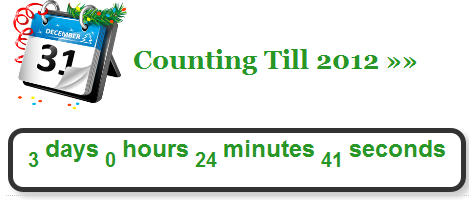
First of all I would like to wishes you Happy New Year 2012. I now comes with a cool New Year CountDown Widget For Blogger And WordPress Blogs for all Muslims, Christian and others. The countdown widget counts down to 31 December 2011 and in military time format by counting days, hours, minutes and seconds left for the coming New Year 2012  event. It also alerts and wishes New Year 2012 by generating a pop-up once the count down ends.

LIVE DEMO

See Previous Blogger Tutorial >> How Add Animated Favicons To Blogger

Add CountDown Gadget To Blogspot

  1. Go To Blogger > Design
  2. Choose HTML/JavaScript widget
  3. Paste the following code inside it,

<style style=”text/css”>

.lcdstyle{ /*Example CSS to create LCD countdown look*/
background:#fff;
color:#289728;
font: bold 20px arial;
padding: 15px;

border:5px solid #333333;

border-radius:15px;
-moz-border-radius:15px;
-webkit-border-radius:15px;
box-shadow: 5px 5px 5px #CCCCCC;
}

.lcdstyle sup{ /*Example CSS to create LCD countdown look*/
font-size: 120%
}

</style>

<script type=”text/javascript”>

function cdtime(container, targetdate){
if (!document.getElementById || !document.getElementById(container)) return
this.container=document.getElementById(container)
this.currentTime=new Date()
this.targetdate=new Date(targetdate)
this.timesup=false
this.updateTime()
}

cdtime.prototype.updateTime=function(){
var thisobj=this
this.currentTime.setSeconds(this.currentTime.getSeconds()+1)
setTimeout(function(){thisobj.updateTime()}, 1000) //update time every second
}

cdtime.prototype.displaycountdown=function(baseunit, functionref){
this.baseunit=baseunit
this.formatresults=functionref
this.showresults()
}

cdtime.prototype.showresults=function(){
var thisobj=this
var timediff=(this.targetdate-this.currentTime)/1000 //difference btw target date and current date, in seconds
if (timediff<0){ //if time is up
this.timesup=true
this.container.innerHTML=this.formatresults()
return
}
var oneMinute=60 //minute unit in seconds
var oneHour=60*60 //hour unit in seconds
var oneDay=60*60*24 //day unit in seconds
var dayfield=Math.floor(timediff/oneDay)
var hourfield=Math.floor((timediff-dayfield*oneDay)/oneHour)
var minutefield=Math.floor((timediff-dayfield*oneDay-hourfield*oneHour)/oneMinute)
var secondfield=Math.floor((timediff-dayfield*oneDay-hourfield*oneHour-minutefield*oneMinute))
if (this.baseunit==”hours”){ //if base unit is hours, set “hourfield” to be topmost level
hourfield=dayfield*24+hourfield
dayfield=”n/a”
}
else if (this.baseunit==”minutes”){ //if base unit is minutes, set “minutefield” to be topmost level
minutefield=dayfield*24*60+hourfield*60+minutefield
dayfield=hourfield=”n/a”
}
else if (this.baseunit==”seconds”){ //if base unit is seconds, set “secondfield” to be topmost level
var secondfield=timediff
dayfield=hourfield=minutefield=”n/a”
}
this.container.innerHTML=this.formatresults(dayfield, hourfield, minutefield, secondfield)
setTimeout(function(){thisobj.showresults()}, 1000) //update results every second
}

/////CUSTOM FORMAT OUTPUT FUNCTIONS BELOW//////////////////////////////

//Create your own custom format function to pass into cdtime.displaycountdown()
//Use arguments[0] to access “Days” left
//Use arguments[1] to access “Hours” left
//Use arguments[2] to access “Minutes” left
//Use arguments[3] to access “Seconds” left

//The values of these arguments may change depending on the “baseunit” parameter of cdtime.displaycountdown()
//For example, if “baseunit” is set to “hours”, arguments[0] becomes meaningless and contains “n/a”
//For example, if “baseunit” is set to “minutes”, arguments[0] and arguments[1] become meaningless etc
function formatresults(){
if (this.timesup==false){//if target date/time not yet met
var displaystring=arguments[0]+” days “+arguments[1]+” hours “+arguments[2]+” minutes “+arguments[3]+” seconds left until December 25, 2011 18:25:00″
}
else{ //else if target date/time met
var displaystring=””
}
return displaystring
}

function formatresults2(){
if (this.timesup==false){ //if target date/time not yet met
var displaystring=”<span class=’lcdstyle’>”+arguments[0]+” <sup>days</sup> “+arguments[1]+” <sup>hours</sup> “+arguments[2]+” <sup>minutes</sup> “+arguments[3]+” <sup>seconds</sup></span> ”
}
else{ //else if target date/time met
var displaystring=”” //Don’t display any text
alert(“HAPPY NEW YEAR EVERYBODY!“) //Instead, perform a custom alert
}
return displaystring
}

</script>
<table><tbody>
<tr>
<td>
<img style=”float:left; ” src=”http://3.bp.blogspot.com/-id6x2AOCGc4/TvoJfxRT-oI/AAAAAAAAFso/HKKnQ5bcnGY/s400/NEW%2BYEAR.png” width=”125px”/>
<h1 style=”color:#289728; padding-top:40px;”>Counting Till 2012 »»</h1><br/>
</td></tr>

<tr><td>
<div id=”countdowncontainer”></div>
<br />
<div id=”countdowncontainer2″></div>

<script type=”text/javascript”>

var futuredate=new cdtime(“countdowncontainer”, “March 23, 2009 18:25:00”)
futuredate.displaycountdown(“days”, formatresults)

var currentyear=new Date().getFullYear()
//dynamically get this Christmas’ year value. If Christmas already passed, then year=current year+1
var thischristmasyear=(new Date().getMonth()>=11 && new Date().getDate()>31)? currentyear+1 : currentyear
var christmas=new cdtime(“countdowncontainer2”, “December 31, “+thischristmasyear+” 0:0:00″)
christmas.displaycountdown(“days”, formatresults2)

</script>

</td></tr>
</tbody></table>


Add CountDown Widget to WordPress

Add below code to your sidebar widget and you have done.

<style style=”text/css”>

.lcdstyle{ /*Example CSS to create LCD countdown look*/
background:#fff;
color:#289728;
font: bold 20px arial;
padding: 15px;

border:5px solid #333333;

border-radius:15px;
-moz-border-radius:15px;
-webkit-border-radius:15px;
box-shadow: 5px 5px 5px #CCCCCC;

}

.lcdstyle sup{ /*Example CSS to create LCD countdown look*/
font-size: 120%
}

</style>

<script type=”text/javascript”>

function cdtime(container, targetdate){
if (!document.getElementById || !document.getElementById(container)) return
this.container=document.getElementById(container)
this.currentTime=new Date()
this.targetdate=new Date(targetdate)
this.timesup=false
this.updateTime()
}

cdtime.prototype.updateTime=function(){
var thisobj=this
this.currentTime.setSeconds(this.currentTime.getSeconds()+1)
setTimeout(function(){thisobj.updateTime()}, 1000) //update time every second
}

cdtime.prototype.displaycountdown=function(baseunit, functionref){
this.baseunit=baseunit
this.formatresults=functionref
this.showresults()
}

cdtime.prototype.showresults=function(){
var thisobj=this

var timediff=(this.targetdate-this.currentTime)/1000 //difference btw target date and current date, in seconds
if (timediff<0){ //if time is up
this.timesup=true
this.container.innerHTML=this.formatresults()
return
}
var oneMinute=60 //minute unit in seconds
var oneHour=60*60 //hour unit in seconds
var oneDay=60*60*24 //day unit in seconds
var dayfield=Math.floor(timediff/oneDay)
var hourfield=Math.floor((timediff-dayfield*oneDay)/oneHour)
var minutefield=Math.floor((timediff-dayfield*oneDay-hourfield*oneHour)/oneMinute)
var secondfield=Math.floor((timediff-dayfield*oneDay-hourfield*oneHour-minutefield*oneMinute))
if (this.baseunit==”hours”){ //if base unit is hours, set “hourfield” to be topmost level
hourfield=dayfield*24+hourfield
dayfield=”n/a”
}
else if (this.baseunit==”minutes”){ //if base unit is minutes, set “minutefield” to be topmost level
minutefield=dayfield*24*60+hourfield*60+minutefield
dayfield=hourfield=”n/a”
}
else if (this.baseunit==”seconds”){ //if base unit is seconds, set “secondfield” to be topmost level
var secondfield=timediff
dayfield=hourfield=minutefield=”n/a”
}
this.container.innerHTML=this.formatresults(dayfield, hourfield, minutefield, secondfield)
setTimeout(function(){thisobj.showresults()}, 1000) //update results every second
}

/////CUSTOM FORMAT OUTPUT FUNCTIONS BELOW//////////////////////////////

//Create your own custom format function to pass into cdtime.displaycountdown()
//Use arguments[0] to access “Days” left
//Use arguments[1] to access “Hours” left
//Use arguments[2] to access “Minutes” left
//Use arguments[3] to access “Seconds” left

//The values of these arguments may change depending on the “baseunit” parameter of cdtime.displaycountdown()
//For example, if “baseunit” is set to “hours”, arguments[0] becomes meaningless and contains “n/a”
//For example, if “baseunit” is set to “minutes”, arguments[0] and arguments[1] become meaningless etc

function formatresults(){
if (this.timesup==false){//if target date/time not yet met
var displaystring=arguments[0]+” days “+arguments[1]+” hours “+arguments[2]+” minutes “+arguments[3]+” seconds left until December 25, 2011 18:25:00″
}
else{ //else if target date/time met
var displaystring=””
}
return displaystring
}

function formatresults2(){
if (this.timesup==false){ //if target date/time not yet met
var displaystring=”<span class=’lcdstyle’>”+arguments[0]+” <sup>days</sup> “+arguments[1]+” <sup>hours</sup> “+arguments[2]+” <sup>minutes</sup> “+arguments[3]+” <sup>seconds</sup></span> ”
}
else{ //else if target date/time met
var displaystring=”” //Don’t display any text
alert(“HAPPY NEW YEAR EVERYBODY!”) //Instead, perform a custom alert
}
return displaystring
}

</script>
<table><tbody>
<tr> <td>
<img style=”float:left; ” src=”http://3.bp.blogspot.com/-id6x2AOCGc4/TvoJfxRT-oI/AAAAAAAAFso/HKKnQ5bcnGY/s400/NEW%2BYEAR.png” width=”125px”/>
<h1 style=”color:#289728; padding-top:40px;”>
Counting Till 2012 »»</h1>

</td></tr>
<tr><td>
<div id=”countdowncontainer”>
</div>

<div id=”countdowncontainer2″>
</div>

<script type=”text/javascript”>

var futuredate=new cdtime(“countdowncontainer”, “March 23, 2009 18:25:00”)
futuredate.displaycountdown(“days”, formatresults)

var currentyear=new Date().getFullYear()
//dynamically get this Christmas’ year value. If Christmas already passed, then year=current year+1
var thischristmasyear=(new Date().getMonth()>=11 && new Date().getDate()>31)? currentyear+1 : currentyear
var christmas=new cdtime(“countdowncontainer2”, “December 31, “+thischristmasyear+” 0:0:00″)
christmas.displaycountdown(“days”, formatresults2)

</script>

</td></tr>
</tbody></table>

Make these changes to its colors and font if you wish:

  • To change font color of the clock edit color:#289728;
  • To change border color edit border:5px solid #333333;
  • To change the text color edit color:#289728 4. Save your widget and drag it just above your blog posts body.
  • The purple texts can be easily edited to any message you wish to write.
  • « Go to Previous Page
  • Page 1
  • Interim pages omitted …
  • Page 66
  • Page 67
  • Page 68
  • Page 69
  • Page 70
  • Go to Next Page »

Primary Sidebar

Get Blogging & SEO Tips by Email

Get helpful blogging, SEO, and content tips delivered straight to your inbox. No spam.

Join 3,489 other subscribers

Popular Posts

  • Is Your Blog Properly Optimized for Performance and SEO?
  • 10 Powerful Ways to Become a Famous Blogger
  • Google AdSense vs Affiliate Marketing: A Simple Comparison for Beginners
  • Effective Ways to Increase Content Reach and Audience Engagement
  • 12 Things to Do Before Applying for Google AdSense
  • Are Backlinks Becoming Less Valuable in Modern SEO?
  • Step-by-Step Guide to Creating a Successful Travel Blog
  • How to Start as a Freelance Writer & Is It Worth?
  • Add Smooth Multi Level Drop-Down Menu In Blogger
  • How To Delete A Blogger Blog Permanently In 5 Minutes (+ FAQs)

Blogging Tools I Use

Over the years, I’ve tested dozens of blogging and WordPress tools. Below are the tools I personally use and recommend for blogging, performance, SEO, and monetization.

Blogging Tools I Use →

Footer

About This Site

All Blogging Tips helps beginners learn how to start, grow, and monetize blogs using WordPress. I share practical guides and honest recommendations based on real blogging experience.

Read more →

Site & Resources

  • Tools I Use
  • About
  • Advertise Here
  • Contact
  • Disclosure Policy
  • Copyright Policy
  • Privacy Policy

Start & Grow Your Blog

  • A Ridiculously Helpful Guide to Start Your Own Blog In 10 Minutes
  • How To Grow Your Blog And Build An Audience
  • How To Make Money From Your Blog
  • Cheap WordPress Hosting
  • Free WordPress Hosting

Copyright © 2026 All Blogging Tips · Powered by InMotion Hosting · WordPress · Log in