
I recently posted Add Smooth Multi Level Drop-Down Menu In Blogger. But this is simple, smooth not just a perfect good looking Stylish Pure CSS3 Multi Level Drop Down Menu. Now I comes with Stylish Pure CSS3 Multi Level Drop Down Menu For Blogger. This menu is purely designed with CSS3 and No Images, No javascript is included in it. It is compatible for almost all browsers like Mozilla Firefox and Google Chrome etc but the rounded corners and shadow will not be rendered properly. This menu is provided by webDesignerWall. I have made installation method very easy you just need to copy and paste the code to where you want Multi Level Drop Down Menu to appear.
Pure CSS3 Multi Level Drop Down Menu Preview
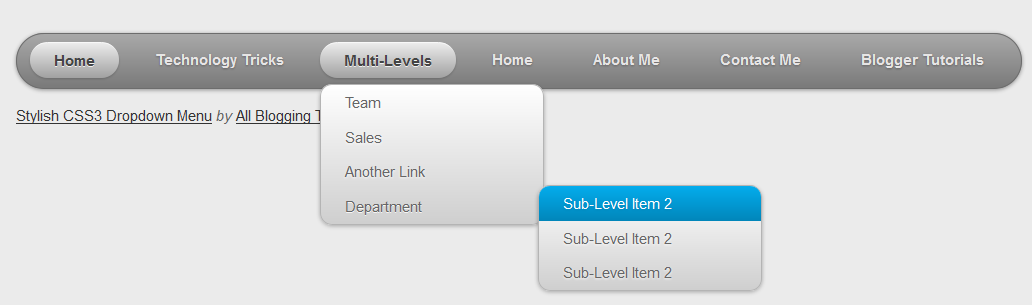
Add Multi Level Drop Down Menu To Blogger
- Go To Blogger > Design
- Click on “Add a Gadget”
- Choose HTML/Javascript widget
- Paste the following code inside it
<style>
#ABT-Container  {
    font: normal .8em/1.5em Arial, Helvetica, sans-serif;
    background: #ebebeb;
     width:100%; float:left;
}

a {
    color: #333;
}
#nav {
    margin: 0;
    padding: 7px 6px 0;
    line-height: 100%;
    border-radius: 2em;

    -webkit-border-radius: 2em;
    -moz-border-radius: 2em;

    -webkit-box-shadow: 0 1px 3px rgba(0, 0, 0, .4);
    -moz-box-shadow: 0 1px 3px rgba(0, 0, 0, .4);

    background: #8b8b8b; /* for non-css3 browsers */
    filter:  progid:DXImageTransform.Microsoft.gradient(startColorstr='#a9a9a9', endColorstr='#7a7a7a'); /* for IE */
    background: -webkit-gradient(linear, left top, left bottom, from(#a9a9a9), to(#7a7a7a)); /* for webkit browsers */
    background: -moz-linear-gradient(top,  #a9a9a9,  #7a7a7a); /* for firefox 3.6+ */

    border: solid 1px #6d6d6d;
}
#nav li {
    margin: 0 5px;
    padding: 0 0 8px;
    float: left;
    position: relative;
    list-style: none;
}
/* main level link */
#nav a {
    font-weight: bold;
    color: #e7e5e5;
    text-decoration: none;
    display: block;
    padding:  8px 20px;
    margin: 0;
    -webkit-border-radius: 1.6em;
    -moz-border-radius: 1.6em;
    text-shadow: 0 1px 1px rgba(0, 0, 0, .3);
}
/* main level link hover */
#nav .current a, #nav li:hover > a {
    background: #d1d1d1; /* for non-css3 browsers */
    filter:  progid:DXImageTransform.Microsoft.gradient(startColorstr='#ebebeb', endColorstr='#a1a1a1'); /* for IE */
    background: -webkit-gradient(linear, left top, left bottom, from(#ebebeb), to(#a1a1a1)); /* for webkit browsers */
    background: -moz-linear-gradient(top,  #ebebeb,  #a1a1a1); /* for firefox 3.6+ */

    color: #444;
    border-top: solid 1px #f8f8f8;
    -webkit-box-shadow: 0 1px 1px rgba(0, 0, 0, .2);
    -moz-box-shadow: 0 1px 1px rgba(0, 0, 0, .2);
    box-shadow: 0 1px 1px rgba(0, 0, 0, .2);
    text-shadow: 0 1px 0 rgba(255, 255, 255, .8);
}
/* sub levels link hover */
#nav ul li:hover a, #nav li:hover li a {
    background: none;
    border: none;
    color: #666;
    -webkit-box-shadow: none;
    -moz-box-shadow: none;
}
#nav ul a:hover {
    background: #0399d4 !important; /* for non-css3 browsers */
    filter:  progid:DXImageTransform.Microsoft.gradient(startColorstr='#04acec', endColorstr='#0186ba'); /* for IE */
    background: -webkit-gradient(linear, left top, left bottom, from(#04acec), to(#0186ba)) !important; /* for webkit browsers */
    background: -moz-linear-gradient(top,  #04acec,  #0186ba) !important; /* for firefox 3.6+ */

    color: #fff !important;
    -webkit-border-radius: 0;
    -moz-border-radius: 0;
    text-shadow: 0 1px 1px rgba(0, 0, 0, .1);
}
/* level 2 list */
#nav ul {
    background: #ddd; /* for non-css3 browsers */
    filter:  progid:DXImageTransform.Microsoft.gradient(startColorstr='#ffffff', endColorstr='#cfcfcf'); /* for IE */
    background: -webkit-gradient(linear, left top, left bottom, from(#fff), to(#cfcfcf)); /* for webkit browsers */
    background: -moz-linear-gradient(top,  #fff,  #cfcfcf); /* for firefox 3.6+ */

    display: none;
    margin: 0;
    padding: 0;
    width: 185px;
    position: absolute;
    top: 35px;
    left: 0;
    border: solid 1px #b4b4b4;
    -webkit-border-radius: 10px;
    -moz-border-radius: 10px;
    border-radius: 10px;
    -webkit-box-shadow: 0 1px 3px rgba(0, 0, 0, .3);
    -moz-box-shadow: 0 1px 3px rgba(0, 0, 0, .3);
    box-shadow: 0 1px 3px rgba(0, 0, 0, .3);
}
/* dropdown */
#nav li:hover > ul {
    display: block;
}
#nav ul li {
    float: none;
    margin: 0;
    padding: 0;
}
#nav ul a {
    font-weight: normal;
    text-shadow: 0 1px 1px rgba(255, 255, 255, .9);
}
/* level 3+ list */
#nav ul ul {
    left: 181px;
    top: -3px;
}
/* rounded corners for first and last child */
#nav ul li:first-child > a {
    -webkit-border-top-left-radius: 9px;
    -moz-border-radius-topleft: 9px;
    -webkit-border-top-right-radius: 9px;
    -moz-border-radius-topright: 9px;
}
#nav ul li:last-child > a {
    -webkit-border-bottom-left-radius: 9px;
    -moz-border-radius-bottomleft: 9px;
    -webkit-border-bottom-right-radius: 9px;
    -moz-border-radius-bottomright: 9px;
}
/* clearfix */
#nav:after {
    content: ".";
    display: block;
    clear: both;
    visibility: hidden;
    line-height: 0;
    height: 0;
}
#nav {
    display: inline-block;
}
html[xmlns] #nav {
    display: block;
}
* html #nav {
    height: 1%;
}
</style>

<div id="ABT-Container">
<ul id="nav"><li><a href="#">Home</a></li>
<li><a href="#">Technology Tricks</a>
<ul>
<li><a href="#">Sub-Row</a>
<ul>
<li><a href="#">Sub Sub-Row 1</a></li>
<li><a href="#">Sub Sub-Row 1</a></li>
<li><a href="#">Sub Sub-Row 1</a></li>
<li><a href="#">Sub Sub-Row 1</a></li>
</a></li></ul>
</li>
<li><a href="#">Sub-Row</a>
<ul>

<li><a href="#">Sub Sub-Row 2</a></li>
</ul>
</li>
<li><a href="#">Sub-Row</a></li>
<li><a href="#">Sub-Row</a></li>
</ul>
</li>

<li><a href="#">Multi-Levels</a>
<ul>
<li><a href="#">Team</a>
<ul>
<li><a href="#">Sub-Level Item 1</a></li>
<li><a href="#">Sub-Level Item 1</a>
<ul>
<li><a href="#">Sub-Level Item 11</a></li>
<li><a href="#">Sub-Level Item 22</a></li>
<li><a href="#">Sub-Level Item 33</a></li>
</ul>
</li>

<li><a href="#">Sub-Level Item 1</a></li>
</ul>
</li>
<li><a href="#">Sales</a></li>
<li><a href="#">Another Link</a></li>
<li><a href="#">Department</a>
<ul>
<li><a href="#">Sub-Level Item 2</a></li>
<li><a href="#">Sub-Level Item 2</a></li>
<li><a href="#">Sub-Level Item 2</a></li>
</ul>
</li>
</ul>
</li><li><a href="#">Home</a></li>
<li><a href="#">About Me</a></li>
<li><a href="#">Contact Me</a></li>
<li><a href="#">Blogger Tutorials</a></li>


</ul>
</div>
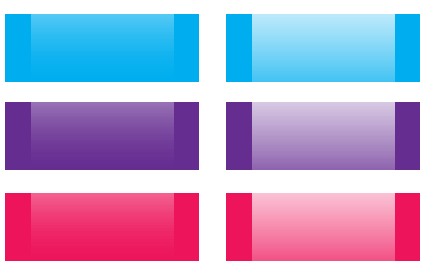
The best part about this Multi Level Drop Down Menu is that you can give it any colour you want because here we are using a transparent gradient image which can take any colour you want. Like:
 Now kindly make these customization changes to add your own links to menu:
- Each TAB can be edited by directly understanding the following HTML code,
<li><a href=”#“>TAB TEXT</a></li>
In each case replace the hash sign (#) with your page URL or link and replace the text with your page title. I have kept the page titles unchanged in the code above so that you could easily edit them by seeing the demo.
This is V1 of Multi Level Drop Down Menu. I will soon publish another article on this cool Multi Level Drop Down Menu. Till than stay tune!

Is there a way to center this menu?
Just search for
float:left;in beginning of code and replace it withfloat:center;after I try, the resulting menu does not like the picture. please help me….
Hi farrel narendra,
Code updated kindly try again :D
it doesn’t look like the above preview image. i put in an HTML widget below the “header” in blogger but it came out a mess. (horizontal)
It came out just fine when I put the HTML widget in the sidebar but all contents are shown up (vertical). I hope, the sub-menus only shows upon hover.
can u help me set it up right please….
thank u.
I email you the process to solve this issue. Hope this works
Ha Ammar,
Nice script!
I have tried your menu, is it possible to have an arrow on the right when you hover over lets say “department” in your example
Cheers Rick
I will help you if you send me an Image about what changes you want to make in menu.
I have used your example and modified it to my needs.
Here’s an example of what I made:
If when I hover the arrow comes up to show the next level.
Cheers, Rick
Now I clearly know what you want to say. If your problem is not solved yet than tell me. :D
I haven’t solve the problem
The example is made in photoshop if you can help me out that will be great.
Thank you ammar for this nice drop down menu sure i will try this
Admin
gudtricks.in
Welcome Shehin!