Running a WordPress blog, it’s far enough to have a good hosting, beautiful theme and content. It’s also important to analyze your website.
You need to find out who your audience it, who are visiting your site, where they are coming for, what they are reading. Unfortunately, WordPress doesn’t come with built-in stats feature to monitor traffic and visitors, but there are certainly a few plugins you can use to keep the record of your data amount, tracking of the users and visitors, tracks the offline activity, etc. A WordPress statistics plugin is a necessary thing for your website..
It’s extremely difficult to find the best WordPress plugins as there are over 29,000 plugins available in the WordPress plugins directory.
I’m going to feature over 10 plugins. I’m not using all of them, I try to use as minimum plugins as I can. Why? Because using too many plugins affects the performance of your blog. So install plugin that you really need.
1- JetPack by WordPress.com
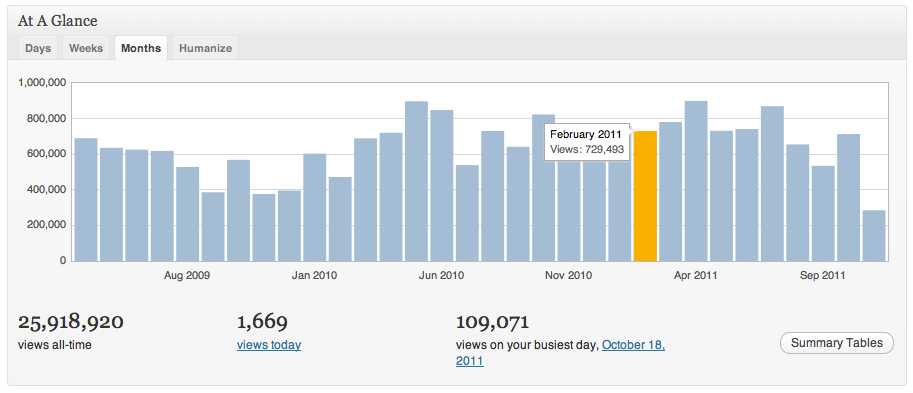
This is the best stat plugin for WordPress and, is exclusively for the users of WordPress, which let them know about the daily users, visitors, customization, mobile visitors, tools, traffic, etc.
I’m using Jetpack from the day I started this plugin. It comes with over 25 modules to manage almost everything on your blog. I definitely recommend it.
It has additional features like:
- Augments your visitors, gets you spam free comments, gets you notification, likes, social sharing, other tools and enhanced distribution.
- This plugin has themes available for the table and mobile users and they can be customized easily as well.
- It supplies the complete security to your WordPres website and has the anti-virus sites like Akismet, Single Sign On, and JetPack Monitor.
- You can easily customize the whole website as per your own taste. There are options like Infinite Scroll, Sidebar Widgets, Custom CSS, Tiled Galleries and much more.
2- Google Analyticator:
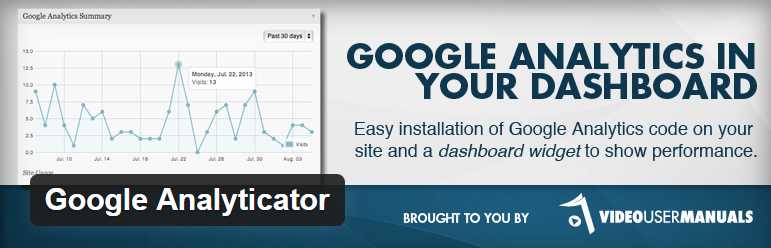
With this plugin, you can put in JavaScript code to allow the Google Analytics log in your website. There are different widgets available in this plugin which makes the data appear easily on your admin page and in the blog. The additional features are:
- Carry the download link trail.
- Speed tracking of site.
- Displays you the visitor’s statistic information in a widget.
- Any code provided by the Google can be tracked.
- Provides the translations into local languages.
- It is easy to install.
- It has this feature of concealing the Google UID descends.
3- kStats Reloaded:
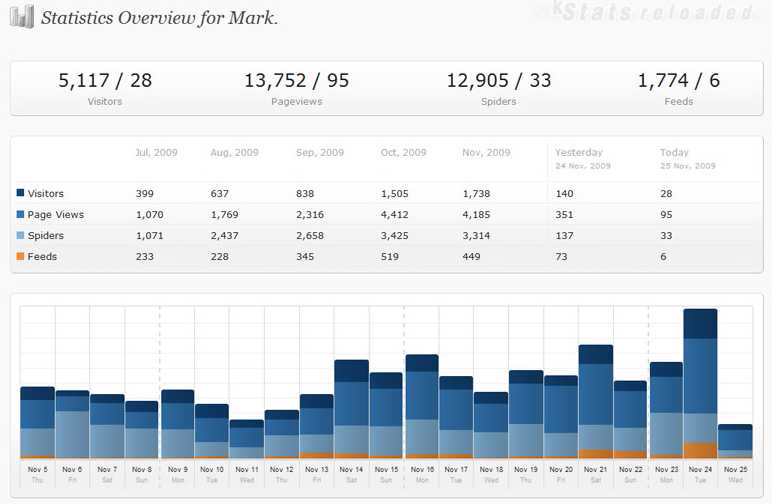
Coming from the old, but very useful site StatPress, the kStat Reloaded is much prompt and advance WordPress statistic plugin. This plugin has some amazing features for the WordPress blogs. It lets you inform about the number of visitors, the timing of their visit, and the place of their visit, the page visits you get and what is the indexing of your WordPress blog right now.
This advanced plugin kStat has the revised features of storing and keeping the information about the visitors and users. This plugin has bit difficult database schemes.
4- Blog Stats by W3Counter
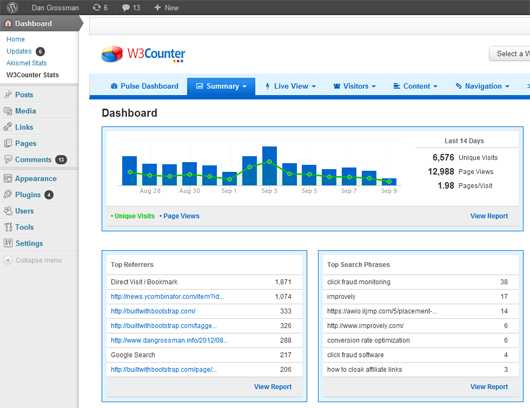
This one of free statistics plugin for WordPress plugin has the widget which it inserts to your sidebar automatically with the tracking code. This plugin is very much in use by the webmasters. It is simple to use and can be run by any user even if they do not know much about dealing with these plugins. The plugin is so much popular that it gets more than 30 downloads per day. It tells you all about the number of daily visitors, top posts, searches and traffic coming your way with the exact numbers.
5- WassUp Real Time Analytics
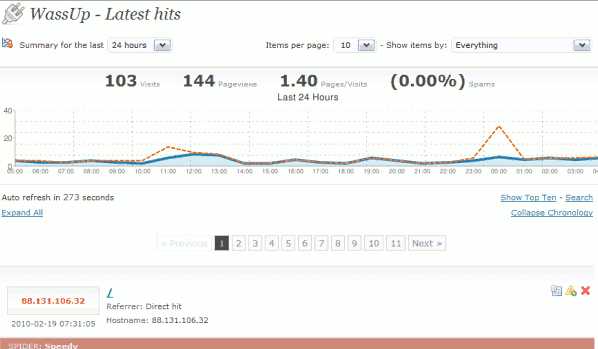
This is very useful site for those who want to keep an eye on the visiting and the activity of the visitors. The WassUp has an in detail console, which shows you that what are your visitors doing on the website.
You get to see an individual act rather than the gathered data of the visitors. You will get to see that what keyword, time period, type of visitors, etc.
This WordPress stat plugin also shows you that which visitor is online and what are they up to from which location. There are two spams detected functions are present in this plugin.
6- Analytics 360

It gathers the Google Analytics and MailChimp’s Analytics360 plugin data into one dashboard. You can check that which users are adding into your mailing list and what is the status of current address and the new addresses. With the tab of campaign traffic, you can individually assess that how much traffic is coming towards your website with the single email campaign.
This stats plugin for WordPress will help you in finding out that that is the new visitors coming to your website through which reference or if they are visiting directly. Along with these main services, there are so many other services by the Analytics 360 plugin as well.
Download Now
7- WP-Stats-Dashboard
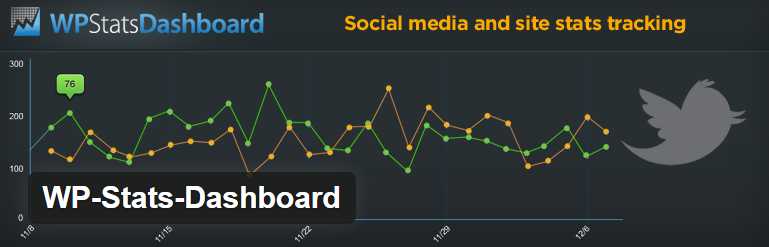
WP-Stats Dashboard is one of best wordpress stats plugin. This multipurpose plugin helps you in getting the stats about your social engagement, ranking in the Alexa, blog traffic and much more. The additional features are like:
- Translate your page for the external users.
- Chase the social metrics of 50+.
- Finds the profile.
- Number of stats dashboard widgets.
- Provides you the sidebar widgets such as: every day graphs, social metrics, top authors, etc.
Download Now
8- StatPress Reloaded
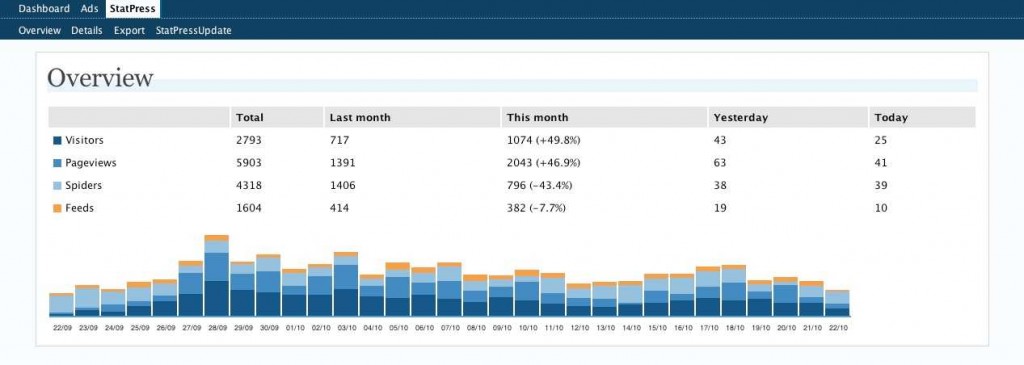
This WP stat plugin has the brilliant offers for the WordPress blogs. You can check out the keyword search, browsers, visitors, OS information without any issue.
You can easily get the information about your blog once you install it on your WordPress blog. It can tell you the stats by showing it on the sidebar. With the limited space; the plugin removes the older documentation. There are several language options as well.
Download Now
9- Advanced Blog Metrics
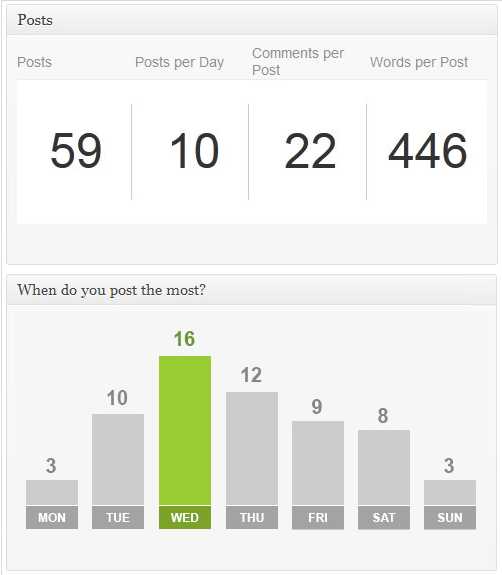
Progress your blog’s performance by adding this plugin to your WordPress blog. It has the features like:
- Tells you the right time to post your release.
- How many comments you received in a day.
- Tells you the highest number authors who made the comments.
- What is the time when your post is getting the most number of comments?
10- WP Statistics
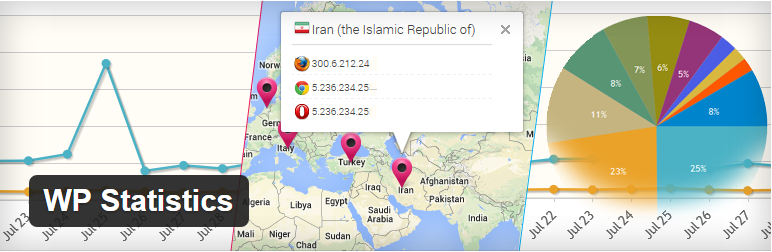
This plugin has its own way of collecting, generating, informing you about the blog statistics. It gets to know you about the:
- Pages which are getting the highest number of visitors.
- Repost of statics through email.
- Who is visiting your website right now?
- How many people are online on the website right now?
- Updates to the GeoIP database.
My Suggestions
All above best WordPress stats plugin are the best to use for your WordPress site. Though, it is alright when you install only one plug-in as the entire above mentioned plug-in have the best features.
When it comes to choosing from the above given best WordPress stat plugin, then Jetpack seems like the most appropriate one for the WordPress statistic plugin. I recommend Jetpack because it comes with lots of built in features like social sharing, custom css, shorten link, socialize, mobile theme and so on.
How do you track stats on your blog? What’s your favorite stats plugin for WordPress?
 First of all I would like to wishes you Happy New Year 2012. I now comes with a cool New Year CountDown Widget For Blogger And WordPress Blogs for all Muslims, Christian and others. The countdown widget counts down to 31 December 2011 and in military time format by counting days, hours, minutes and seconds left for the coming New Year 2012 event. It also alerts and wishes New Year 2012 by generating a pop-up once the count down ends.
 Did you ever want to know how many times a particular post has been viewed? I will show you How To Add Post Views Counter In WordPress Posts Without Plugin. This is very useful to track post views this will help you in future to write more interesting, quality content articles which can attract more visitors. Just add the following snippets to your template files and you are ready to go for Post Views Counter In WordPress!