Search Results for: ai content

5 Free WordPress Mobile Plugins For Responsive Design

How often do you use your mobile phone for loading web pages?

A number of times, right?

A statistic presented that 33.4% of the traffic to the website comes from mobile phones and the numbers are increasing exceedingly. Just like you, there are multiple internet users who prefer a mobile device more convenient to visit websites.

In order to make your website mobile responsive, it is essential to understand the need of top most WordPress mobile plugins.

What if your WordPress theme doesn’t have a build-in responsive plugin?

Simple. You need one.

5 Best Author Box Plugin for WordPress

Now a days many of wordpress blog have author box at end of each post. Now it’s becoming very popular to have author box in author blog.

MOST of you already know author box and its importance to manage multi-author blogs.  There are many plugins that add author box to your blog but  I’m sharing 5 Best Author Box Plugin with many great features. Simple and advance plugins

5 Best Author Box Plugin for WordPress

Here I’m sharing free and best author box plugins for wordpress. You can try any of them you want.

1. Better Author Bio

best author box plugin

This is best author box plugin I like from our list of best author box plugin and would recommend to use as it don’t require any coding. Its just simple, neat and clean :D. Here are few reasons Why I like this plugin!

  • It’s simple, clean and elegant.
  • View All Post by Author Option
  • Author Blog Link
  • Author Social Profile Link
  • It shows Number of Articles written by author
  • Too much easy to install and configure!

2. Fancier Author Box

fanciest author-box

Give identity to your single or multi-author with Fancier Author Box Plugin. This plugin comes with great features as well as link to author posts and latest post. You can easily hide or show latest post. Though I’ve not used it but many other blogs are using it and its working perfect!

There is also paid version of Fancier Author Box which gives you more advance features like Twitter, Facebook, Google+ Tabs. You can read more here!

Here are few feature of premium version of this plugin.

  • Simple and Clean
  • Link to Author Latest Post
  • Social Icons below avatar
  • Easy to enable / customize its look and tab option!


3. Social Author Bio
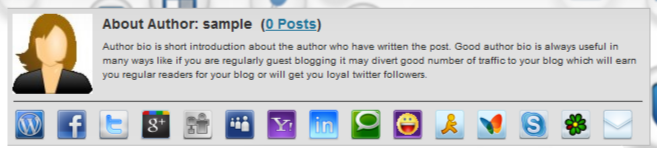
best author box plugin

Like other this plugin automatically adds an author bio box with Gravatar and social icons on your each posts. This is the most configurable author bio box with social profile links. It comes with 15+ Social profile links. You can easily customize any of them. Here are few features of this plugin!

  • Simple yet stylish like others! ;)
  • Gravatar with Author Bio
  • Shows Number of post by author
  • 15+ Social Profiles Links.

4. Cool Author Box

cool author box

This plugin don’t need much introduction. This plugin also works like others but it style is different you can see screenshot above. This plugin will add author box to end of your post with avatar at bottom right side and link to author site and archives!

5. Custom About Author

This is last plugin from our collect of best author box plugin. This plugin looks like Social Author Bio. But Its simple with only 4 social profile and rounded corner! It does not contain link to author archives! Although its good plugin. You can try!

Don’t forget to look at our recent plugin collection for WordPress Blog


Over To You!

What do you think why author box is important for blogs? Don’t forget to let me know which best author box plugin you use in your blog in comment section!

Happy Blogging! :)
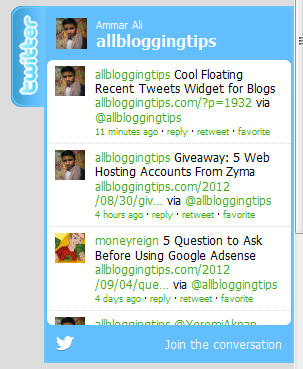
Cool Floating Recent Tweets Widget for Blogs

cool floating twitter follower boxI recently Posted a cool twitter follower widget for blogger blog. Previous one is  a simple widget for sidebar.Today I’ve Floating Recent Tweets Widget For Blogger and WordPress Blog. When you move cursor on it. It pop out with Cool Floating Recent Tweets Widget. This is a great widget for you to increase twitter followers and force visitors to follow you. ;)
 
Below I’ll show you how to add this Cool Floating Recent Tweets Widget In Blogger and WordPress.


Live Demo

Adding Cool Floating Floating Recent Tweets Widget.

Adding Recent Tweets Widget To Blogger

  1. Go to Dashboard > Design > Page Elements.
  2. Click Add A Gadget. In window, select HTML/Javascript .
  3. Copy the code below and paste it inside the box.
  4. Click Save button.

Adding Recent Tweets Widget To WordPress

  1. Go to Dashboard > Appearance > Widgets > Available Widgets.
  2. Drag Text widget into a sidebar.
  3. Paste in the code.
  4. Save.
<style>img,a{border:0;}#on{visibility:visible;}#off{visibility:hidden;}#facebook_div{width:196px;height:353px;overflow:hidden;}#twitter_div{width:246px;height:353px;overflow:hidden;}#google_plus_div{width:152px;height:97px;overflow:hidden;margin-left:50px;margin-top:10px;}#knfeedburner_div{width:300px;height:97px;margin-top:25px;overflow:hidden;}#kakinetwork_div{width:300px;height:97px;overflow:hidden;}

#twitter_right{z-index:10004;border:2px solid #6CC5FF;background-color:#6CC5FF;width:246px;height:353px;position:fixed;right:-250px;}#twitter_right_img{position:absolute;top:-2px;left:-35px;border:0;}

#kakinetwork_right{z-index:10003;border:2px solid #303030;background-color:#fff;width:300px;height:97px;position:fixed;}#kakinetwork_right img{position:absolute;top:-2px;left:-101px;}/* left side style */#facebook_left{z-index:10005;border:2px solid #3c95d9;background-color:#fff;width:196px;height:353px;position:fixed;left:-200px;}#facebook_left img{position:absolute;top:-2px;right:-35px;}#facebook_left iframe{border:0px solid #3c95d9;overflow:hidden;position:static;height:360px;right:-2px;top:-3px;}#twitter_left{z-index:10004;border:2px solid #6CC5FF;background-color:#6CC5FF;width:246px;height:353px;position:fixed;left:-250px;}#twitter_left_img{position:absolute;top:-2px;right:-35px;border:0;}
#kakinetwork_left{z-index:10003;border:2px solid #303030;background-
color:#fff;width:300px;height:97px;position:fixed;}#kakinetwork_left img{position:absolute;top:-2px;right:-101px;}

</style><script src='http://ajax.googleapis.com/ajax/libs/jquery/1.7.1/jquery.min.js'></script><script type="text/javascript" src="http://apis.google.com/js/plusone.js"></script><script type="text/javascript">jQuery(document).ready(function(){ jQuery("#facebook_right").hover(function(){ jQuery(this).stop(true,false).animate({right:  0}, 500); },function(){ jQuery("#facebook_right").stop(true,false).animate({right: -200}, 500); });    jQuery("#twitter_right").hover(function(){ jQuery(this).stop(true,false).animate({right:  0}, 500); },function(){ jQuery("#twitter_right").stop(true,false).animate({right: -250}, 500); });     jQuery("#google_plus_right").hover(function(){ jQuery(this).stop(true,false).animate({right:  0}, 500); },function(){ jQuery("#google_plus_right").stop(true,false).animate({right: -154}, 500); });    jQuery("#feedburner_right").hover(function(){ jQuery(this).stop(true,false).animate({right:  0}, 500); },function(){ jQuery("#feedburner_right").stop(true,false).animate({right: -303}, 500); });    });</script>

<div id="on"><div id="twitter_right" style="top: 20%;"><div id="twitter_div"><img id="twitter_right_img" src="http://2.bp.blogspot.com/-fcEMbjMcVhI/UDzNfUCWxcI/AAAAAAAAAt4/p0lew_c7Sxw/s320/allbloggingtips.com-twitter-icon.png" /><script src="http://widgets.twimg.com/j/2/widget.js"></script><script>new TWTR.Widget({version: 2,type: 'profile',rpp: 4,interval: 1000,width: 246,height: 260,theme: {shell: {background: '#63BEFD',color: '#FFFFFF'},tweets: {background: '#FFFFFF',color: '#000000',links: '#47a61e'}},features: { loop: false,live: true,scrollbar: false,hashtags: false,timestamp: true,avatars: true,behavior: 'all' }}).render().setUser('allbloggingtips').start();</script></div></div></div>

</div>

Just replace allbloggingtips with your twitter username. That’s it! :D

Visit your Blogs to see it floating at the right side of your webpage. I hope this Floating Recent Tweets Widget will help you in increasing the number of your Twitter Followers. That’s all. If you face any problem in Floating Floating Recent Tweets Widget then don’t stop just drop your comments and Feel free to ask.

Freshlife Theme: Best Magazine WordPress Theme

A quick review of Freshlife Theme.

Looking for some fresh, best magazine WordPress Theme?

FreshLife Theme is best! this Theme really give your blog a fresh life ;)

Freshlife Theme is Best Magazine WordPress Theme by ThemeJunkie. I’ve been using this on one of my blog and its just amazing. Fast loading, elegant design, widgets ready, SEO Friendly design.

Its is being used by many blogs because of its awesome features.

You can get this theme just for 39$ Buy Now (+2 bonus themes) = $39 You can also use coupon to get 35% off.

Freshlife Theme

Live Demo | Download| More Info →
Below I write features of this Freshlife Theme with coupon code for huge saving!

Features of Freshlife Theme

Here are the quick features of Freshlife Theme and I’ll surely recommend you to use this theme as it comes with hell lot of featres at very low price.

Advanced Control Panel : You can take the full control of your theme with our powerful and easy-to-use theme options panel from setting to rock your theme.

Homepage Posts Style (Magazine/Traditional blog) : Freshlife Theme comes with amazing features one of this is magazine or traditional blog. You can switch at any time you want.

Search Engine Optimized : Freshlife Theme comes with awesome panel to optimize your website. It includes all meta tag, description title in setting page.

Widgets Read : Freshlife Theme come with multiple custom ready widgets you can easily add them to your sidebar from widget panel.

AD Management is easy to use : You can place any 125×125 banner images in your sidebar and 468×60 ads to your post pages with very easy widget option. No need to edit core files and play with codes. You can also place adsense there with ease!

Lifetime Support : This freshlife theme comes with a great lifetime support. If you face any problem with that theme. You can contact theme-junkie to solve it. And yes, it’s all FREE..

What’s more?


Freshlife Theme

  • Advanced Theme Control Panel
  • Auto-sized Thumbnail Management
  • Text/Image Logo Switcher
  • Analytics/Stat Management
  • Built-in FeedBurner Support
  • Threaded Comments
  • Custom Widgets
  • 2 Dropdown Menu Navigation
  • Smooth design
  • WordPress 3.3+ Compatible
  • Forum Support
  • Lifetime Upgrade

35% Discount Coupon Code for Freshlife Theme:

You can use below discount coupon code  “35OFF” to get 35% Off on any theme including freshlife theme.

35OFF

Buy Freshlife Theme now!

Over To You!

I would recommend you to buy this theme if you are looking for some good, magazine style wordpress theme with great support. it comes with awesome features. I already discuss them above. Worth paying 39$ because you will get 2 bounce theme of your choice for absolutely free! with this theme. Isn’t that cool? ;)

I am already using this theme on one of my another blog. I must say they have a great features comes with every theme. Awesome control panel, SEO friendly themes with lifetime support, elegant theme and fast loading design!

Are you using theme junkie themes or best magazine wordpress theme? How far is your experience with their Themes? Do let me know specially about Freshlife Theme.

5 Question to Ask Before Using Google Adsense

Adsense Are you currently using Google Adsense on your blog, or even thinking about it?


 
Then stop here now! ;)
 
You’ve to ask Five Question to yourself Before Using Google Adsense.
 
This blog post just might open your eyes to what you might be doing to your blog and audience for just a few dollars. There was a previous post on this blog titled “12 Things to Do Before Applying for Google Adsense“, which walks you through the process of what you need to make sure you blog looks like and has before applying to Google Adsense. We are going to take that same approach, but with a few different questions to ask yourself if you really want to sacrifice your blog and traffic to the almighty Google Adsense!

How much is your site traffic worth?

Before using any advertising solution, you need to know what your traffic is and how much they are worth. Entertainment sites and blogs have a low value per user, as they are pretty much there just to view pictures and get news. Product reviews and coupon sites have a high value per user, as they are already in buyer mode. Knowing your average visitor value is a very important thing to know!

Read : How To Get Traffic To A New Blog ?

Are you playing by Google’s rules at all times?

Lately Google has been on a tear and throwing many sites out of their Google Adsense program. No matter their reason Google may banner your account, once you are tossed, you are gone for good and they will also keep all of the money remaining in your account as well. Do you really want to work with an ad network that can keep all your profits from this and the previous month? As a Google Adsense partner, you always need to play by their rules at all times.

Can you make more money going directly?

Have you even thought about selling your own banner ad space? There is a good chance you can find a quality advertiser in your niche that will pay a much higher CPM premium over what Google Adsense will pay you. If you are running 125×125 banner ads on your site you can probably fill four to ten of these banner spots and make several times more than what Google Adsense could ever earn you.

Are you killing your profits by using Google Adsense?

One of the best ways to kill your profits is by throwing Google Adsense on your site. If you are selling products, trying to get people on your mailing list or get them to take any other action… Google Adsense will hurt you. Keep your focus on your end goal of either getting people on your list or getting them to take action. If you have a solid monetization plan for your site, Google Adsense probably shouldn’t be one of them.

Lastly… do you like giving away your traffic for a few pennies per visitor?

When did you last click on a Google Adsense banner?

I’m not sure if you remember. ;)

But whenever someone clicks on any Google Adsense banner, they leave the site they are currently on and get swooshed off to another site. Most of the time Google Adsense is only paying a few pennies per click. Are you losing your traffic for just a few pennies? If you are, it’s not a good business model at all!

Don’t get me wrong… :D

Google Adsense has made BILLIONS of dollars for Google and their publishers… but there is a reason why it’s so ridiculously easy and simple to setup. Google is making a ton of money by lazy site owners just placing a code on their site and not knowing better. There is nothing wrong with using Google Adsense, but there are much better and more profitable ways to make money!