• Skip to primary navigation
  • Skip to main content
  • Skip to primary sidebar
  • Skip to footer
logo

All Blogging Tips

Everything About Blogging

  • Home
  • Start a Blog
  • Grow Your Blog
  • About
  • Contact
  • Privacy Policy
  • Tools I Use

Search Results for: ai content

Copyright Policy

If you liked our content and want to content link from All Blogging Tips then follow our Copyright Policy :


  • First contact me before linking/reproducing the content.
  • After getting the required permission from me, you can continue your next step for publishing the article.
  • Please Make sure that you are not copying the full content or article, only a 1-2 paragraph lines accepted.
  • You must indicate clearly that content is owned and derived from All Blogging Tips and you must give credits to our blog.
  • Please do not use our images etc.
  • After publishing article Send us your article link [Permalink].

NOTE: Please make sure that you obey these copyright rules and policies, or else the difficulty is yours.

You are allowed to copy our content with attribution only. If we came to know that our content/articles is republished illegally in any blog or website, we will file a complaint with their advertising partners like Google Adsense and DMCA department of their web hosting company.

So, let us play a fair game!!! :)

What’s New with My Blog? New Logo, Comment Luv and Much More!

By Ammar Ali 48 Comments

Recently on 1st June AllBloggingTips.com Completed 6 months :) I was pretty happy to see progress of my blog. So I decided to make some more changed to comes up with something cool.

I’m sure that you might notice these changes here with my blog.

So what’s it, exactly?

Today, I am going to announce few changes that I did recently. I hope you will like these new change. If not? Do comment below to let me know if I missed something ;)

I installed CommentLuv Plugin

wp-plugin-commentluv

CommentLuv is an awesome WP plugin that allows commentators for adding links to their latest blog posts along with their comments. This plugin can help to get more comments, and it also help our readers to build backlinks for blogs effectively.

Now I installed CommentLuv Plugin. If you comment below it will show up your 10 recent post along with your comment. Which will help you to get few traffic, backlinks. Isn’t that cool ;)

Another thing good about Comment Luv Enabled is it automatically fetches ten most from the RSS of the URL you provide. And will show selected post with your comment. So what you are waiting for comment below and get quality backlink.. Currently this blog is page rank 3

We got Google Sitelinks.

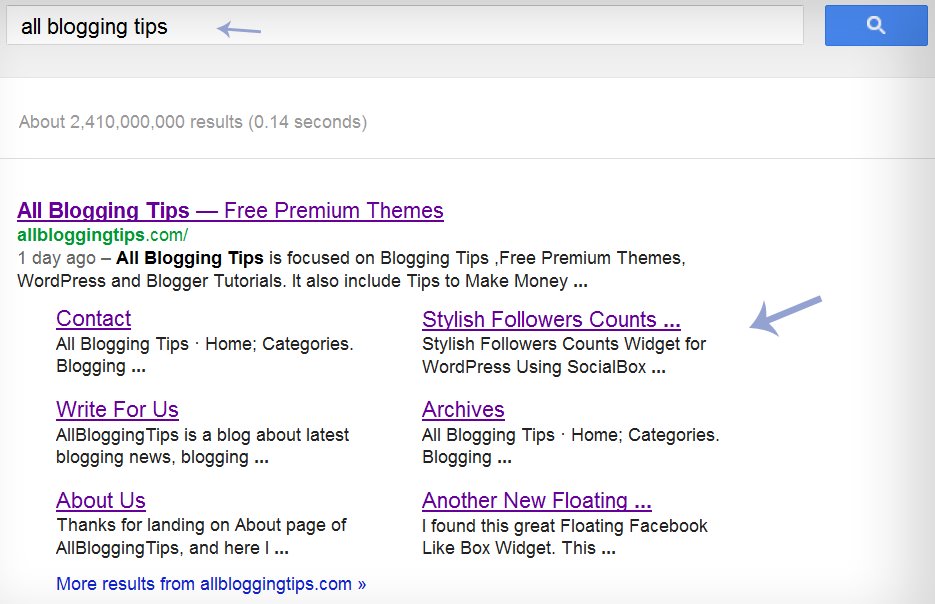
Yes, We got google site links on 1st June. Its another good changes for SERP of this blog. To see how site links work see screenshot below!

ABT sitelinks

New Logo

Recently I was planing to use some good fonts for ABT logo and new icon. But I thought current one is better. I just did some customization like changing font, colors, Icon. Have a look below. Do let me know how’s it? BTW I like simple logo ;)

new Allloggingtips logoz

What’s More?

A part from new logo and installing comment luv plugin. I also did some more changes to optimize this blog :)

  1. Adding Subscribe Box After header
  2. Floating Sharing Buttons, After post sharing buttons
  3. Little Changes to Menu
  4. Header, Sidebar, Before, After post option to add banners.
  5. Hot Products Widget in Sidebar
  6. Removing Author Avatar from Homepage
  7. Stylish Related Post
  8. Awesome Commentators Widget!

The main thing I want to write in this post that is Installing CommentLuv Plugin and New Logo. Rest are few things that I wanted to tell you. In the mean time I also join few affiliate networks like KolaKube. Currently this blog runs on Marketer Delight 2.1 Best skin for thesis.

I also added few ads on this blog.  These are some new changes has been added in my blog, I hope you will enjoy with these changing. Do let me know if I missed anything.

Have a great day.  :D

Sleek and Cool Search Boxes For WordPress!

By Ammar Ali 4 Comments

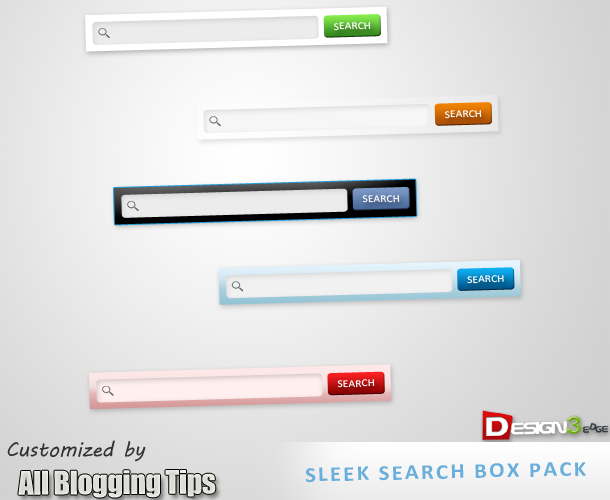
I recently shared Sleek and Cool Search Boxes widget for Blogger. Response was pretty good. Lots of my blog readers asked me to provide these cool search boxes for WordPress. So today I am sharing 5 awesome, Sleek and Cool Search Boxes Pack for WordPress. Actually these are PSD source designed by Design3edge. We work hard in converting this to WordPress for YOU. Hope you enjoyed with this!

Update: For Blogspot Version Click Here!

sleek search boxes by allbloggingtips

Cool Search Boxes For WordPress?

  1. Go to Dashboard > Appearance > Widgets > Available Widgets.
  2. Drag Text widget into a sidebar.
  3. Paste in the code.
  4. Save.

Style 1

search boxes

<style>
.search_form2 {
border-radius:10px !important;-moz-border-radius: 13px;
        -webkit-border-radius: 13px;
        -o-border-radius: 13px;
        -ms-border-radius: 13px;
        -khtml-border-radius: 13px;
        border-radius: 13px;
background:URL(http://2.bp.blogspot.com/-vGjST2sX6Ts/T88uy-eRYUI/AAAAAAAAAog/xhJ2A0nGnpw/s1600/black.png) no-repeat scroll center center transparent;height:50px;display:block; width:302px;}</style>
<center><form method="get" style="-moz-border-radius: 13px;
        -webkit-border-radius: 13px;        -o-border-radius: 13px;
        -ms-border-radius: 13px;        -khtml-border-radius: 13px;
        border-radius: 13px;"

 class="search_form2" action=""><p>

<input type="text" id="s" style="background:transparent;
width:180px; border-radius:10px;
border:none;
margin:11px;
padding:4px; padding-top:6px !important;
padding-left:17px !important;
" name="s" value="Search in site..." onfocus="if(this.value==this.defaultValue)this.value='';" onblur="if(this.value=='')this.value=this.defaultValue;"/><input type="submit" value="Go" style="border:1px
solid rgba(0, 0, 0, .25);color:#FFF!important;margin-left:3px;background:#316ca4 url(http://3.bp.blogspot.com/-L3o3uwrf0Sk/T9CO3hbq1XI/AAAAAAAAApg/8RmMXmM6-MY/s320/blue.png) repeat-x top;display:inline-block;
border-radius:5px; font-weight:bold;
width:57px; float:right; margin-right:11px;margin-top:11px; height:30px;" id="searchsubmit"></p></form></center>

Style 2

search boxes

<style>
.search_form2 {
border-radius:10px !important;-moz-border-radius: 13px;
        -webkit-border-radius: 13px;
        -o-border-radius: 13px;
        -ms-border-radius: 13px;
        -khtml-border-radius: 13px;
        border-radius: 13px;
background:URL(http://4.bp.blogspot.com/-hxd1468RbE4/T88u0xTfk1I/AAAAAAAAApQ/BZ1WB9VG_3g/s400/whitez%2Bby%2Babt.png) no-repeat scroll center center transparent;height:50px;display:block; width:302px;}</style>
<center><form method="get" style="-moz-border-radius: 13px;
        -webkit-border-radius: 13px;        -o-border-radius: 13px;
        -ms-border-radius: 13px;        -khtml-border-radius: 13px;
        border-radius: 13px;"

 class="search_form2" action=""><p>

<input type="text" id="s" style="background:transparent;
width:180px; border-radius:10px;
border:none;
margin:11px;
padding:4px; padding-top:6px !important;
padding-left:17px !important;
" name="s" value="Search in site..." onfocus="if(this.value==this.defaultValue)this.value='';" onblur="if(this.value=='')this.value=this.defaultValue;"/><input type="submit" value="Go" style="border:1px
solid rgba(0, 0, 0, .25);color:#FFF!important;margin-left:3px;background:#316ca4 url(http://3.bp.blogspot.com/-L3o3uwrf0Sk/T9CO3hbq1XI/AAAAAAAAApg/8RmMXmM6-MY/s320/blue.png) repeat-x top;display:inline-block;
border-radius:5px; font-weight:bold;
width:57px; float:right; margin-right:11px;margin-top:11px; height:30px;" id="searchsubmit"></p></form></center>

Style 3

search boxes

<style>
.search_form2 {
border-radius:10px !important;-moz-border-radius: 13px;
        -webkit-border-radius: 13px;
        -o-border-radius: 13px;
        -ms-border-radius: 13px;
        -khtml-border-radius: 13px;
        border-radius: 13px;
background:URL(http://4.bp.blogspot.com/-Z_Bf8C64sWs/T88uy_rLu3I/AAAAAAAAAow/EcYyd6sKjxA/s400/bluez%2Bby%2Ballbloggingtips.png) no-repeat scroll center center transparent;height:50px;display:block; width:302px;}</style>
<center><form method="get" style="-moz-border-radius: 13px;
        -webkit-border-radius: 13px;        -o-border-radius: 13px;
        -ms-border-radius: 13px;        -khtml-border-radius: 13px;
        border-radius: 13px;"

 class="search_form2" action=""><p>

<input type="text" id="s" style="background:transparent;
width:180px; border-radius:10px;
border:none;
margin:11px;
padding:4px; padding-top:6px !important;
padding-left:17px !important;
" name="s" value="Search in site..." onfocus="if(this.value==this.defaultValue)this.value='';" onblur="if(this.value=='')this.value=this.defaultValue;"/><input type="submit" value="Go" style="border:1px
solid rgba(0, 0, 0, .25);color:#FFF!important;margin-left:3px;background:#316ca4 url(http://3.bp.blogspot.com/-L3o3uwrf0Sk/T9CO3hbq1XI/AAAAAAAAApg/8RmMXmM6-MY/s320/blue.png) repeat-x top;display:inline-block;
border-radius:5px; font-weight:bold;
width:57px; float:right; margin-right:11px;margin-top:11px; height:30px;" id="searchsubmit"></p></form></center>

Style 4

search boxes

<style>
.search_form2 {
border-radius:10px !important;-moz-border-radius: 13px;
        -webkit-border-radius: 13px;
        -o-border-radius: 13px;
        -ms-border-radius: 13px;
        -khtml-border-radius: 13px;
        border-radius: 13px;
background:URL(http://4.bp.blogspot.com/-T2F6d51MVw8/T88u0v_kIqI/AAAAAAAAApE/pB5bbugoVoM/s400/transparent%2Bby%2Ballbloggingtips.png) no-repeat scroll center center transparent;height:50px;display:block; width:302px;}</style>
<center><form method="get" style="-moz-border-radius: 13px;
        -webkit-border-radius: 13px;        -o-border-radius: 13px;
        -ms-border-radius: 13px;        -khtml-border-radius: 13px;
        border-radius: 13px;"

 class="search_form2" action=""><p>

<input type="text" id="s" style="background:transparent;
width:180px; border-radius:10px;
border:none;
margin:11px;
padding:4px; padding-top:6px !important;
padding-left:17px !important;
" name="s" value="Search in site..." onfocus="if(this.value==this.defaultValue)this.value='';" onblur="if(this.value=='')this.value=this.defaultValue;"/><input type="submit" value="Go" style="border:1px
solid rgba(0, 0, 0, .25);color:#FFF!important;margin-left:3px;background:#316ca4 url(http://3.bp.blogspot.com/-L3o3uwrf0Sk/T9CO3hbq1XI/AAAAAAAAApg/8RmMXmM6-MY/s320/blue.png) repeat-x top;display:inline-block;
border-radius:5px; font-weight:bold;
width:57px; float:right; margin-right:11px;margin-top:11px; height:30px;" id="searchsubmit"></p></form></center>

Style 5

search boxes

<style>
.search_form2 {
border-radius:10px !important;-moz-border-radius: 13px;
        -webkit-border-radius: 13px;
        -o-border-radius: 13px;
        -ms-border-radius: 13px;
        -khtml-border-radius: 13px;
        border-radius: 13px;
background:URL(http://1.bp.blogspot.com/-D98wjamWcwk/T88u0dnSPuI/AAAAAAAAAo4/U4Oy3x-zhRg/s400/pinkz.png) no-repeat scroll center center transparent;height:50px;display:block; width:302px;}</style>
<center><form method="get" style="-moz-border-radius: 13px;
        -webkit-border-radius: 13px;        -o-border-radius: 13px;
        -ms-border-radius: 13px;        -khtml-border-radius: 13px;
        border-radius: 13px;"

 class="search_form2" action=""><p>

<input type="text" id="s" style="background:transparent;
width:180px; border-radius:10px;
border:none;
margin:11px;
padding:4px; padding-top:6px !important;
padding-left:17px !important;
" name="s" value="Search in site..." onfocus="if(this.value==this.defaultValue)this.value='';" onblur="if(this.value=='')this.value=this.defaultValue;"/><input type="submit" value="Go" style="border:1px
solid rgba(0, 0, 0, .25);color:#FFF!important;margin-left:3px;background:#316ca4 url(http://3.bp.blogspot.com/-L3o3uwrf0Sk/T9CO3hbq1XI/AAAAAAAAApg/8RmMXmM6-MY/s320/blue.png) repeat-x top;display:inline-block;
border-radius:5px; font-weight:bold;
width:57px; float:right; margin-right:11px;margin-top:11px; height:30px;" id="searchsubmit"></p></form></center>
Customization: Kindly replace allbloggingtips.com from above codes to your WP site url to make these cool search boxes to works !
  • Credits

Sleek and Cool Search Boxes For WordPress tutorial is a first time shared tutorial guide by AllBloggingTips. These scripts, widget and style sheets are provided only by ABT therefore if you wish to share this tutorial with your readers and friends then kindly link back to this post as the only favour in return. :D

That’s all!. We hope you enjoyed this Cool Search Boxes for WordPress. You can also subscribe us to get our next tutorial in your inbox ;)

Subscribe Here!

Sleek and Cool Search Boxes for Blogger

By Ammar Ali 13 Comments

I recently shared simple yet cool search boxes for blogger. Now its time for something new, cool, beautiful and sleek.

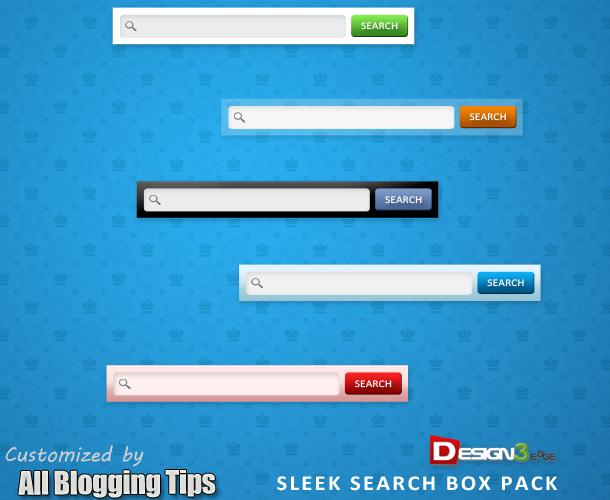
So here comes sleek and cool search boxes for blogger/blogspot. It’s using simple image and css, HTML. Actually these are PSD source designed by Design3edge. I work hard in converting this to Blogger for YOU. Hope you enjoyed with this!

 Update: For WordPress Version Click Here!

sleek search boxes by allbloggingtips

Adding Add Cool Search Boxes For Blogger

  1. Login to Blogger Dashboard   => Design tab  => Page Elements .
  2. Click on Add a Gadget where you wish to place this Search Boxes.
  3. Choose HTML/JavaScript from the List.
  4. Place any one Search Box code in to it and Save the Gadget.

Style 1

search boxes

<style type="text/css">
#abt-searchbox{
border-radius:5px;
background:URL(http://2.bp.blogspot.com/-vGjST2sX6Ts/T88uy-eRYUI/AAAAAAAAAog/xhJ2A0nGnpw/s1600/black.png) no-repeat scroll center center transparent;width:307px;height:50px;disaply:block;}
form#abt-searchform{display: block;padding: 10px 12px;margin:0;}
form#abt-searchform #s{padding-left:16px !important; padding:7.5px;margin:0;width: 235px;font-size:14px;vertical-align: top;border:none;background:transparent;}
form#abt-searchform
#sbutton{margin:0;padding:0;height:40px; width:44px;vertical-align: top;border:none;background:transparent;}
</style>
<div id="abt-searchbox">

<form id="abt-searchform" action="/search" method="get">
    <input type="text" id="s" name="q" value="Search..." onfocus='if (this.value == "Search...") {this.value = ""}' onblur='if (this.value == "") {this.value = "Search...";}'/>
    <input type="image" src="http://img1.blogblog.com/img/blank.gif" id="sbutton" />
</form>
</div>

Style 2

search boxes

<style type="text/css">
#abt-searchbox{
border-radius:5px;
background:URL(http://4.bp.blogspot.com/-hxd1468RbE4/T88u0xTfk1I/AAAAAAAAApQ/BZ1WB9VG_3g/s400/whitez%2Bby%2Babt.png) no-repeat scroll center center transparent;width:307px;height:50px;disaply:block;}
form#abt-searchform{display: block;padding: 10px 12px;margin:0;}
form#abt-searchform #s{padding-left:16px !important; padding:7.5px;margin:0;width: 235px;font-size:14px;vertical-align: top;border:none;background:transparent;}
form#abt-searchform
#sbutton{margin:0;padding:0;height:40px; width:44px;vertical-align: top;border:none;background:transparent;}
</style>
<div id="abt-searchbox">

<form id="abt-searchform" action="/search" method="get">
    <input type="text" id="s" name="q" value="Search..." onfocus='if (this.value == "Search...") {this.value = ""}' onblur='if (this.value == "") {this.value = "Search...";}'/>
    <input type="image" src="http://img1.blogblog.com/img/blank.gif" id="sbutton" />
</form>
</div>

Style 3

search boxes

<style type="text/css">
#abt-searchbox{
border-radius:5px;
background:URL(http://4.bp.blogspot.com/-Z_Bf8C64sWs/T88uy_rLu3I/AAAAAAAAAow/EcYyd6sKjxA/s400/bluez%2Bby%2Ballbloggingtips.png) no-repeat scroll center center transparent;width:307px;height:50px;disaply:block;}
form#abt-searchform{display: block;padding: 10px 12px;margin:0;}
form#abt-searchform #s{padding-left:16px !important; padding:7.5px;margin:0;width: 235px;font-size:14px;vertical-align: top;border:none;background:transparent;}
form#abt-searchform
#sbutton{margin:0;padding:0;height:40px; width:44px;vertical-align: top;border:none;background:transparent;}
</style>
<div id="abt-searchbox">

<form id="abt-searchform" action="/search" method="get">
    <input type="text" id="s" name="q" value="Search..." onfocus='if (this.value == "Search...") {this.value = ""}' onblur='if (this.value == "") {this.value = "Search...";}'/>
    <input type="image" src="http://img1.blogblog.com/img/blank.gif" id="sbutton" />
</form>
</div>

Style 4

search boxes

<style type="text/css">
#abt-searchbox{
border-radius:5px;
background:URL(http://4.bp.blogspot.com/-T2F6d51MVw8/T88u0v_kIqI/AAAAAAAAApE/pB5bbugoVoM/s400/transparent%2Bby%2Ballbloggingtips.png) no-repeat scroll center center transparent;width:307px;height:50px;disaply:block;}
form#abt-searchform{display: block;padding: 10px 12px;margin:0;}
form#abt-searchform #s{padding-left:16px !important; padding:7.5px;margin:0;width: 235px;font-size:14px;vertical-align: top;border:none;background:transparent;}
form#abt-searchform
#sbutton{margin:0;padding:0;height:40px; width:44px;vertical-align: top;border:none;background:transparent;}
</style>
<div id="abt-searchbox">

<form id="abt-searchform" action="/search" method="get">
    <input type="text" id="s" name="q" value="Search..." onfocus='if (this.value == "Search...") {this.value = ""}' onblur='if (this.value == "") {this.value = "Search...";}'/>
    <input type="image" src="http://img1.blogblog.com/img/blank.gif" id="sbutton" />
</form>
</div>

Style 5

search boxes

<style type="text/css">
#abt-searchbox{
border-radius:5px;
background:URL(http://1.bp.blogspot.com/-D98wjamWcwk/T88u0dnSPuI/AAAAAAAAAo4/U4Oy3x-zhRg/s400/pinkz.png) no-repeat scroll center center transparent;width:307px;height:50px;disaply:block;}
form#abt-searchform{display: block;padding: 10px 12px;margin:0;}
form#abt-searchform #s{padding-left:16px !important; padding:7.5px;margin:0;width: 235px;font-size:14px;vertical-align: top;border:none;background:transparent;}
form#abt-searchform
#sbutton{margin:0;padding:0;height:40px; width:44px;vertical-align: top;border:none;background:transparent;}
</style>
<div id="abt-searchbox">

<form id="abt-searchform" action="/search" method="get">
    <input type="text" id="s" name="q" value="Search..." onfocus='if (this.value == "Search...") {this.value = ""}' onblur='if (this.value == "") {this.value = "Search...";}'/>
    <input type="image" src="http://img1.blogblog.com/img/blank.gif" id="sbutton" />
</form>
</div>

Credits

This is again a first time shared tutorial guide by AllBloggingTips. These scripts, widget and style sheets are provided only by ABT  therefore if you wish to share this tutorial with your readers and friends then kindly link back to this post as the only favour in return. :D

That’s all!. We hope you enjoyed this Cool Search Boxes. You can also subscribe  us to get our next tutorial in your inbox ;)

Subscribe Here!

HOW TO: Increase Traffic To Your Photography Blog

By Paul Santosh 11 Comments

So, you have a photography blog and you’ve been posting pictures for a long time and you’re still not getting enough traffic. The same happened to my friend. Traffic means a lot especially for blogs. It’s easy to manage a photo blog, but when it comes to traffic it may be difficult to get it. In this article I’m gonna show you how to increase traffic to your photo blog making the best use of the social networking sites.

Photography

1. Use Watermarks while sharing your pictures

One of the best way to increase traffic to your photo blog is to share your pictures with your blog URL watermark or use some text like this on the image – “For Full Size Visit This Website – [YOURBLOG].com”. You small size pictures while sharing, and tell them to visit your site for the full size images.

2. Join Photography groups on Facebook

There are many groups on Facebook for photographers, you can find them in the search bar in the Facebook homepage, then there you’ll find some posting there, send a friend request to anyone of them, and then, after he accepts the request, tell him to add you to the group. And then post your images(which should have watermarks). And then wait for a few days, you’ll see the increase traffic to your blog!

3. Pin your Images

Pinterest is the largest growing social networking site. You can drive large amounts of traffic from Pinterest, if you have good amount of followers. You may google it to find tips and tricks about how to increase followers and repins. Here are a few tips to get more followers –

  • Keep pinning regularly
  • Don’t pin only your (blog’s) images, but also keep pinning other awesome pics.
  • Comment on others images to gain exposure
  • Follow as many as you can, so that you’ll gain exposure, since they’ll see you in their notifications and may follow you back!

4. Add your images in Flickr

As you know, Flickr is one of the largest image sharing sites. Add some images in Flickr with a watermark text(make sure your blog URL, is in the watermark text.)

5. Optimize your images for search engines

SEO is the best way to increase traffic for any kinda blog. This is the same for photo blogs too. Here are few tips to optimize your images for search engines –

  1. Use keyword in file name

For example, let us think you’ve bought a new Mercedes, and you want to post that image in your photo blog, then the image with file name my-new-mercedes.jpg would get a better ranking in search engines than IMG00010.jpg
So, it’s better to use a keyword in a file name, to get a better ranking.

  2. Descriptive Alt Tags

The alt attribute describes the contents of an image file.(You can read about the importance of alt attribute in the image publishing guidelines). An image with alt attribute is market up as follows –

<img src="my-new-mercedes" alt="My New Mercedes" />

  3. SEO Friendly Images WordPress Plugin

SEO Friendly Images is a WordPress Plugin which automatically updates all images with proper alt and title attributes. It makes your SEO for images easy. Read more about this plugin here – http://wordpress.org/extend/plugins/seo-image/

You can read more about optimizing images for SEO here – http://support.google.com/webmasters/bin/answer.py?hl=en&answer=114016&ctx=sibling

Some website which increase your photo blog’s exposure –

  • Cool PhotoBlogs
  • Photo Friday.

Hope you find this article useful :)

  • « Go to Previous Page
  • Page 1
  • Interim pages omitted …
  • Page 46
  • Page 47
  • Page 48
  • Page 49
  • Page 50
  • Interim pages omitted …
  • Page 67
  • Go to Next Page »

Primary Sidebar

Get Blogging & SEO Tips by Email

Get helpful blogging, SEO, and content tips delivered straight to your inbox. No spam.

Join 3,493 other subscribers

Popular Posts

  • Is Your Blog Properly Optimized for Performance and SEO?
  • 10 Powerful Ways to Become a Famous Blogger
  • Google AdSense vs Affiliate Marketing: A Simple Comparison for Beginners
  • Effective Ways to Increase Content Reach and Audience Engagement
  • 12 Things to Do Before Applying for Google AdSense
  • Are Backlinks Becoming Less Valuable in Modern SEO?
  • Step-by-Step Guide to Creating a Successful Travel Blog
  • How to Start as a Freelance Writer & Is It Worth?
  • Add Smooth Multi Level Drop-Down Menu In Blogger
  • How To Delete A Blogger Blog Permanently In 5 Minutes (+ FAQs)

Blogging Tools I Use

Over the years, I’ve tested dozens of blogging and WordPress tools. Below are the tools I personally use and recommend for blogging, performance, SEO, and monetization.

Blogging Tools I Use →

Categories

  • Announcement (12)
  • Ask The Readers (2)
  • Blogger (56)
    • Blogger Hacks (4)
    • Blogger Tips (24)
  • Blogging (108)
    • Blogging Tips (81)
    • Writing Tips (6)
  • Coupons (2)
  • Design (5)
  • Email Marketing (4)
  • Free Themes (1)
    • WordPress Themes (1)
  • Free Traffic (40)
    • Guest Blogging (7)
    • Search Engine Optimization (4)
    • Social Media (13)
  • Giveaway (16)
  • Hosting (14)
  • How To (48)
  • Latest News (1)
  • Make Money Online (37)
    • Adsense (7)
    • Affiliate Marketing (8)
  • Reviews (17)
  • SEO (46)
  • Social Media (13)
    • Facebook (5)
      • Tips and Tricks (3)
    • Twitter (2)
  • WordPress (54)
    • WordPress Plugins (17)
    • WordPress Themes (5)
    • WordPress Tricks (2)
    • WordPress Widgets (14)

Footer

About This Site

All Blogging Tips helps beginners learn how to start, grow, and monetize blogs using WordPress. I share practical guides and honest recommendations based on real blogging experience.

Read more →

Site & Resources

  • Tools I Use
  • About
  • Advertise Here
  • Contact
  • Disclosure Policy
  • Copyright Policy
  • Privacy Policy

Start & Grow Your Blog

  • A Ridiculously Helpful Guide to Start Your Own Blog In 10 Minutes
  • How To Grow Your Blog And Build An Audience
  • How To Make Money From Your Blog
  • Cheap WordPress Hosting
  • Free WordPress Hosting

Copyright © 2026 All Blogging Tips · Powered by InMotion Hosting · WordPress · Log in